Basics, part 6
What every line of a Unity shader file is for
A small Unity shader file read line by line, from the material's settings to both eyes of a headset, plus the tags, render state and Blend lines other shaders use.
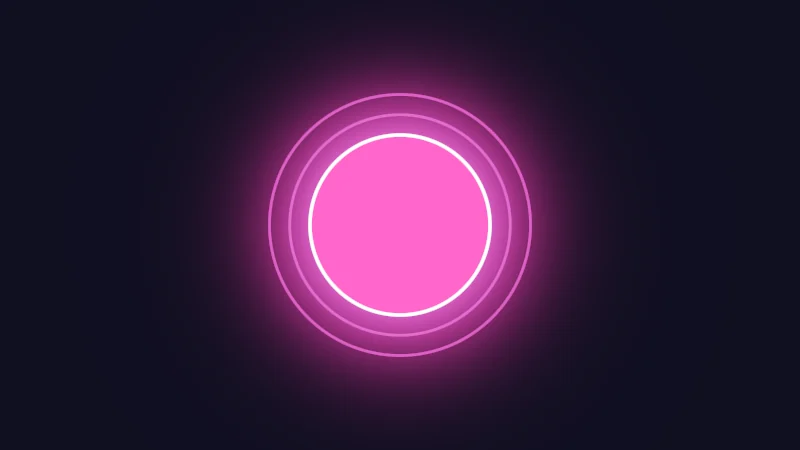
The first time I opened a .shader file, it looked like a wall of curly brackets and SHOUTY WORDS. It’s really a few boxes inside each other, and most of them say the same thing in every shader. Let’s take apart the small file behind this little sticker, top to bottom. It has one control of each kind.
Turn on JavaScript to run this demo.
Rendered in Unity 2022.3.22f1 from the Copy for Unity shader, with the settings this demo starts with.
// A glowing sticker with one control of each kind, to read in its Unity file.
uniform float _Size;   // @range 0.2 0.6 0.01 = 0.4 | Size | How big the sticker is.
uniform float _Rings;  // @range 0 4 1 = 2 | Rings | How many thin rings echo the edge.
uniform float3 _Tint;  // @color = #ff66cc | Tint | The sticker's color.
uniform float _Glow;   // @toggle = 1 | Glow | A soft light around the sticker.
uniform float _Shape;  // @select = 0 | Shape | Circle=0, Square=1, Diamond=2 | Which shape the sticker has.

float4 shade(float2 uv)
{
    float2 p = centered(uv) - pointerCentered();

    // The distance from this pixel to the sticker's edge: negative inside.
    int shape = int(_Shape + 0.5);
    float d = length(p) - _Size;
    float2 r = shape == 2 ? mul(rot2(PI / 4.0), p) : p;
    float2 q = abs(r) - 0.7 * _Size;
    if (shape > 0) d = length(max(q, 0.0)) + min(max(q.x, q.y), 0.0) - 0.2 * _Size;

    float3 col = float3(0.012, 0.012, 0.025);
    col += _Tint * 0.6 * exp(-8.0 * max(d, 0.0)) * _Glow;
    float gap = 0.09;
    float ring = abs(d - gap * clamp(round(d / gap), 1.0, max(_Rings, 1.0)));
    col += _Tint * 0.5 * strokeAA(ring, 0.012) * saturate(_Rings);
    col = tonemapACES(col);
    col = lerp(col, _Tint, fillAA(d));
    col = lerp(col, float3(1.0, 1.0, 1.0), strokeAA(d, 0.016));
    return float4(col, 1.0);
}
// A glowing sticker with one control of each kind, to read in its Unity file.
uniform float _Size; // @range 0.2 0.6 0.01 = 0.4 | Size | How big the sticker is.
uniform float _Rings; // @range 0 4 1 = 2 | Rings | How many thin rings echo the edge.
uniform vec3 _Tint; // @color = #ff66cc | Tint | The sticker's color.
uniform float _Glow; // @toggle = 1 | Glow | A soft light around the sticker.
uniform float _Shape; // @select = 0 | Shape | Circle=0, Square=1, Diamond=2 | Which shape the sticker has.
vec4 shade(vec2 uv)
{
vec2 p = centered(uv) - pointerCentered();
// The distance from this pixel to the sticker's edge: negative inside.
int shape = int(_Shape + 0.5);
float d = length(p) - _Size;
vec2 r = shape == 2 ? (p * rot2(PI / 4.0)) : p;
vec2 q = abs(r) - 0.7 * _Size;
if (shape > 0) d = length(max(q, 0.0)) + min(max(q.x, q.y), 0.0) - 0.2 * _Size;
vec3 col = vec3(0.012, 0.012, 0.025);
col += _Tint * 0.6 * exp(-8.0 * max(d, 0.0)) * _Glow;
float gap = 0.09;
float ring = abs(d - gap * clamp(round(d / gap), 1.0, max(_Rings, 1.0)));
col += _Tint * 0.5 * strokeAA(ring, 0.012) * saturate(_Rings);
col = tonemapACES(col);
col = mix(col, _Tint, fillAA(d));
col = mix(col, vec3(1.0, 1.0, 1.0), strokeAA(d, 0.016));
return vec4(col, 1.0);
}Names in this code (31)
_Glow- Switch "Glow". A soft light around the sticker.
_Rings- Slider "Rings". How many thin rings echo the edge. From 0 to 4, starts at 2.
_Shape- Choice "Shape". Which shape the sticker has.
_Size- Slider "Size". How big the sticker is. From 0.2 to 0.6, starts at 0.4.
_Tint- Color picker "Tint". The sticker's color.
centered- float2 centered(float2 uv). Square coordinates with the origin in the middle: the short side of the picture spans -1..1. (common library)
col- Declared on line 19: float3 col = float3(0.012, 0.012, 0.025);
d- Declared on line 14: float d = length(p) - _Size;
fillAA- float fillAA(float d). Anti-aliased coverage of a signed distance: 1 inside, 0 outside, a one pixel ramp at the edge. (common library)
gap- Declared on line 21: float gap = 0.09;
lerp- HLSL's blend from a (t = 0) to b (t = 1). GLSL calls it mix.
mul- Matrix times vector or matrix times matrix in HLSL. mul(M, v) applies M to v.
p- Declared on line 10: float2 p = centered(uv) - pointerCentered();
pointerCentered- float2 pointerCentered(). The pointer (or the _Pointer material setting in Unity) in the same coordinates as centered(). (common library)
q- Declared on line 16: float2 q = abs(r) - 0.7 * _Size;
r- Declared on line 15: float2 r = shape == 2 ? mul(rot2(PI / 4.0), p) : p;
ring- Declared on line 22: float ring = abs(d - gap * clamp(round(d / gap), 1.0, max(_Rings, 1.0)));
rot2- float2x2 rot2(float a). Turns a point by a radians, counterclockwise: mul(rot2(a), p). (common library)
saturate- An HLSL function that clamps a value between 0 and 1.
shade- float4 shade(float2 uv)
shape- Declared on line 13: int shape = int(_Shape + 0.5);
strokeAA- float strokeAA(float d, float width). Anti-aliased line of a given width (same units as d) around the zero line of d. (common library)
tonemapACES- float3 tonemapACES(float3 x). Rolls HDR values above 1 off softly instead of clipping them. (common library)
uv- A parameter of shade(), line 8: float2 uv.
abs- abs(x) is x without its minus sign. abs(-0.3) = 0.3.
clamp- clamp(x, lo, hi) holds x between lo and hi.
exp- exp(x) is e to the power x. exp(0) = 1, and it falls towards 0 as x goes negative.
length- length(v) says how long the vector v is, sqrt(x² + y²).
max- max(a, b) picks the larger of the two.
min- min(a, b) picks the smaller of the two.
round- round(x) is the nearest whole number to x.
Drag the sticker, then try every control. Each one becomes a line of the Unity file below.
Boxes inside boxes
Copy for Unity, the cube button on a demo’s code window, turns the demo into this file. Point at or tap any dotted word for its meaning.
Shader "DocMe/unity-shader-file/fig_01"
{
    Properties
    {
        _Size ("Size", Range(0.2, 0.6)) = 0.4
        [IntRange] _Rings ("Rings", Range(0, 4)) = 2
        _Tint ("Tint", Color) = (1, 0.4, 0.8, 1)
        [ToggleUI] _Glow ("Glow", Float) = 1
        [Enum(Circle, 0, Square, 1, Diamond, 2)] _Shape ("Shape", Float) = 0
        _Pointer ("Pointer", Vector) = (0.5, 0.5, 0, 0)
    }
    SubShader
    {
        Tags { "RenderType"="Opaque" "Queue"="Geometry" }
        Pass
        {
            CGPROGRAM
            #pragma vertex vert
            #pragma fragment frag
            #pragma target 3.0
            #include "UnityCG.cginc"

            float4 _Pointer;
// The site's shared helpers, inlined so the file stands alone (97 lines). Open to read them.
            // Library: common
            // Always included. Constants, coordinates, anti-aliasing, hashes and the stage colors.
            // The same code runs on this site (DOCME_WEB) and in Unity; only where the picture's size comes from differs.

            #define PI 3.14159265359
            #define TAU 6.28318530718

            float remap(float x, float a, float b, float c, float d) { return c + (x - a) * (d - c) / (b - a); }
            float remap01(float x, float a, float b) { return saturate((x - a) / (b - a)); }

            // Width over height of the picture: the canvas on the site, the quad's scale in Unity.
            float docmeAspect()
            {
            #ifdef DOCME_WEB
                return _ScreenParams.x / _ScreenParams.y;
            #else
                return length(unity_ObjectToWorld._m00_m10_m20) / length(unity_ObjectToWorld._m01_m11_m21);
            #endif
            }

            // Square coordinates with the origin in the middle: the short side of the picture spans -1..1.
            float2 centered(float2 uv)
            {
                float a = docmeAspect();
                return (uv * 2.0 - 1.0) * float2(a, 1.0) / min(a, 1.0);
            }

            // The pointer (or the _Pointer material setting in Unity) in the same coordinates as centered().
            float2 pointerCentered()
            {
                float a = docmeAspect();
                return (_Pointer.xy * 2.0 - 1.0) * float2(a, 1.0) / min(a, 1.0);
            }

            // Width of one pixel in centered() units. Measured once per pixel before shade() runs, outside any branch.
            static float docmePixel;
            float pixelSize() { return docmePixel; }

            // Anti-aliased coverage of a signed distance: 1 inside, 0 outside, a one pixel ramp at the edge.
            float fillAA(float d)
            {
                float w = max(fwidth(d), 1e-5);
                return saturate(0.5 - d / w);
            }
            // Anti-aliased line of a given width (same units as d) around the zero line of d.
            float strokeAA(float d, float width) { return fillAA(abs(d) - 0.5 * width); }

            // Cheap hashes: one random number per input. Dave Hoskins, Hash without Sine (MIT License).
            float hash11(float p)
            {
                p = frac(p * 0.1031);
                p *= p + 33.33;
                p *= p + p;
                return frac(p);
            }
            float hash12(float2 p)
            {
                float3 p3 = frac(p.xyx * 0.1031);
                p3 += dot(p3, p3.yzx + 33.33);
                return frac((p3.x + p3.y) * p3.z);
            }
            float2 hash22(float2 p)
            {
                float3 p3 = frac(p.xyx * float3(0.1031, 0.1030, 0.0973));
                p3 += dot(p3, p3.yzx + 33.33);
                return frac((p3.xx + p3.yz) * p3.zy);
            }

            // Turns a point by a radians, counterclockwise: mul(rot2(a), p).
            float2x2 rot2(float a)
            {
                float c = cos(a), s = sin(a);
                return float2x2(c, -s, s, c);
            }

            // Color. Shaders work in linear light, as Unity does in a linear project; the screen gets sRGB at the end.
            float3 srgbToLinear(float3 c) { return lerp(c / 12.92, pow((c + 0.055) / 1.055, float3(2.4, 2.4, 2.4)), step(0.04045, c)); }
            float3 linearToSrgb(float3 c)
            {
                c = max(c, 0.0);
                return lerp(c * 12.92, 1.055 * pow(c, float3(0.41666667, 0.41666667, 0.41666667)) - 0.055, step(0.0031308, c));
            }
            // Blends two colors in steps that look even to the eye (in sRGB), for value ramps such as distance bands.
            // Edges and coverage still blend with lerp, in linear light, as light really adds up.
            float3 tint(float3 a, float3 b, float t) { return srgbToLinear(lerp(linearToSrgb(a), linearToSrgb(b), t)); }
            // Rolls HDR values above 1 off softly instead of clipping them.
            float3 tonemapACES(float3 x) { return saturate((x * (2.51 * x + 0.03)) / (x * (2.43 * x + 0.59) + 0.14)); }
            float luminance(float3 c) { return dot(c, float3(0.2126, 0.7152, 0.0722)); }

            // The dusk stage colors, in linear light. Series colors are used in this order: mint, pink, butter.
            float3 themeSurface() { return float3(0.0080, 0.0048, 0.0243); }
            float3 themeInk() { return float3(0.8794, 0.8154, 1.0000); }
            float3 themeMuted() { return float3(0.3971, 0.3280, 0.6383); }
            float3 themeGrid() { return float3(0.0243, 0.0138, 0.0646); }
            float3 series1() { return float3(0.2085, 0.8710, 0.5771); }
            float3 series2() { return float3(1.0000, 0.2749, 0.5771); }
            float3 series3() { return float3(1.0000, 0.6577, 0.2540); }
// A glowing sticker with one control of each kind, to read in its Unity file.
uniform float _Size; // @range 0.2 0.6 0.01 = 0.4 | Size | How big the sticker is.
uniform float _Rings; // @range 0 4 1 = 2 | Rings | How many thin rings echo the edge.
uniform float3 _Tint; // @color = #ff66cc | Tint | The sticker's color.
uniform float _Glow; // @toggle = 1 | Glow | A soft light around the sticker.
uniform float _Shape; // @select = 0 | Shape | Circle=0, Square=1, Diamond=2 | Which shape the sticker has.
float4 shade(float2 uv)
{
float2 p = centered(uv) - pointerCentered();
// The distance from this pixel to the sticker's edge: negative inside.
int shape = int(_Shape + 0.5);
float d = length(p) - _Size;
float2 r = shape == 2 ? mul(rot2(PI / 4.0), p) : p;
float2 q = abs(r) - 0.7 * _Size;
if (shape > 0) d = length(max(q, 0.0)) + min(max(q.x, q.y), 0.0) - 0.2 * _Size;
float3 col = float3(0.012, 0.012, 0.025);
col += _Tint * 0.6 * exp(-8.0 * max(d, 0.0)) * _Glow;
float gap = 0.09;
float ring = abs(d - gap * clamp(round(d / gap), 1.0, max(_Rings, 1.0)));
col += _Tint * 0.5 * strokeAA(ring, 0.012) * saturate(_Rings);
col = tonemapACES(col);
col = lerp(col, _Tint, fillAA(d));
col = lerp(col, float3(1.0, 1.0, 1.0), strokeAA(d, 0.016));
return float4(col, 1.0);
}
struct appdata
{
float4 vertex : POSITION;
float2 uv : TEXCOORD0;
UNITY_VERTEX_INPUT_INSTANCE_ID
};
struct v2f
{
float4 pos : SV_POSITION;
float2 uv : TEXCOORD0;
UNITY_VERTEX_OUTPUT_STEREO
};
v2f vert(appdata v)
{
v2f o;
UNITY_SETUP_INSTANCE_ID(v);
UNITY_INITIALIZE_OUTPUT(v2f, o);
UNITY_INITIALIZE_VERTEX_OUTPUT_STEREO(o);
o.pos = UnityObjectToClipPos(v.vertex);
o.uv = v.uv;
return o;
}
float4 frag(v2f i) : SV_Target
{
UNITY_SETUP_STEREO_EYE_INDEX_POST_VERTEX(i);
docmePixel = length(fwidth(centered(i.uv))) * 0.70710678;
return float4(shade(i.uv).rgb, 1.0);
}
ENDCG
}
}
}The outer boxes are ShaderLab, Unity’s language for describing a shader: Shader holds everything, Properties the settings, SubShader the drawing and Pass the code. The code itself, between CGPROGRAM and ENDCG, is HLSL (more in a later lesson).
The first line, Shader "DocMe/unity-shader-file/fig_01", is the name you pick in a material’s Shader menu (each slash opens a submenu). It needn’t match the file’s name.
The material’s settings in Properties
Each line in Properties becomes one setting on the material:
_Size ("Size", Range(0.2, 0.6)) = 0.4| Part | What it is |
|---|---|
_Size | The variable name the code reads. |
"Size" | The label the material shows. |
Range(0.2, 0.6) | The type, here a slider from 0.2 to 0.6. |
= 0.4 | Where a new material starts. |
The other lines bring more types. Tint is a Color (a color picker), Glow and Shape are a Float (one number) and Pointer a Vector (four numbers). A word in square brackets is a drawer, which only changes how the setting looks. IntRange makes Rings stop on whole numbers, ToggleUI turns Glow into a checkbox and Enum turns Shape into a dropdown of named numbers.
Further down, a variable has the same name:
uniform float _Size; // @range 0.2 0.6 0.01 = 0.4 | Size | How big the sticker is.Before each draw, Unity copies the material’s value into it. Uniform means one value for all pixels, and the comment only builds this site’s slider. Misspell the name and the variable stays at 0, however much you move the setting.
SubShader, Tags and Pass
Tags { "RenderType"="Opaque" "Queue"="Geometry" }A shader can hold several SubShaders, say a simpler one for older graphics cards, and Unity uses the first one the card can run. Its tags say when and how it draws. Queue sets its turn, and the lowest number goes first. Solid things draw in Geometry, then see-through things in Transparent, back to front so each blends over what’s behind. RenderType is a label for when Unity redraws the scene with stand-in shaders.
A Pass is one drawing of the object, and toon shaders often add a second for an outline. Passes have tags too. LightMode names the pass’s lighting job, such as the main light or shadows, and without it the pass draws unlit.
Where the code begins
CGPROGRAM
#pragma vertex vert
#pragma fragment frag
#pragma target 3.0
#include "UnityCG.cginc"
#pragma lines are notes for the compiler, which turns this text into graphics card instructions. The first two name the functions: vert, the vertex shader, runs for every corner of the mesh, and frag, the fragment shader, for every pixel it covers. target 3.0 asks for shader model 3.0, a feature set every graphics card has today.
UnityCG.cginc holds Unity’s ready made helpers. After it come the site’s helpers (folded away above) and the demo, word for word.
Two little structs
A struct is a bundle of values with one name. The first, appdata, carries the two things the mesh hands over for each corner, its position and its UV. The second, v2f (vertex to fragment), is what vert passes on to frag:
struct v2f
{
    float4 pos : SV_POSITION;
    float2 uv : TEXCOORD0;
    UNITY_VERTEX_OUTPUT_STEREO
};
The words after the colons are semantics, labels that tell the graphics card what each value is. SV stands for system value, one the graphics card itself acts on.
| Semantic | Means |
|---|---|
POSITION | The corner’s position on the mesh. |
TEXCOORD0 | The mesh’s first UV set, or in v2f a slot to carry a value along. |
SV_POSITION | Where the corner lands on screen. |
SV_Target | The color frag writes. |
vert places corners, frag colors pixels
v2f o;
UNITY_SETUP_INSTANCE_ID(v);
UNITY_INITIALIZE_OUTPUT(v2f, o);
UNITY_INITIALIZE_VERTEX_OUTPUT_STEREO(o);
o.pos = UnityObjectToClipPos(v.vertex);
o.uv = v.uv;
return o;
UnityObjectToClipPos moves the corner from the mesh’s own space onto the screen, and the UV comes along (the UNITY_ lines come later). The graphics card then blends the corners’ values across each triangle, giving every pixel its own UV, like in the first lesson.
float4 frag(v2f i) : SV_Target
{
    UNITY_SETUP_STEREO_EYE_INDEX_POST_VERTEX(i);
    docmePixel = length(fwidth(centered(i.uv))) * 0.70710678;
    return float4(shade(i.uv).rgb, 1.0);
}
frag hands each pixel to shade, the demo’s own function. The docmePixel line first measures how big a pixel is, for the soft edges.
Both eyes at once
Headsets need one picture per eye. In Unity’s single pass instanced mode, the graphics card draws each object twice in one go, one copy (instance) per eye, and the UNITY_ lines tell each copy its eye. Without them, the shader shows in one eye only. VRChat’s SDK compiles every shader for this mode on upload, so keep them. The odd one out, UNITY_INITIALIZE_OUTPUT, fills v2f with zeros first.
Taking it to Unity
- Press Copy for Unity on the demo, or Copy on the file above.
- In Unity’s Project window, right-click and choose Create > Shader > Unlit Shader. Open it, replace everything with what you copied, and save.
- Choose Create > Material, and pick DocMe > unity-shader-file > fig_01 in its Shader menu.
- Add a quad with GameObject > 3D Object > Quad, and drag the material onto it.
Scale the quad to 1.78 in X for the demo’s wide frame, then play with the settings.
The render state around your code
Render state lines set up the graphics card’s own steps around your code. Cull throws away triangles facing the wrong way before frag sees them. The depth buffer remembers how far away the nearest thing on each pixel is: ZTest checks new pixels against it, ZWrite says whether they store their distance there, and Offset nudges their distance a little, so a decal stops flickering on its wall.
ColorMask picks the channels written, and AlphaToMask smooths cutout edges under MSAA. Stencil bends brains a little. It keeps a hidden number on each pixel, for portals and mirrors. Every value waits in the fold-out at the end, where I look them up too.
Mixing with the screen using Blend
Blend mixes the color frag returns, the source (Src), into the color on screen, the destination (Dst). Each is multiplied by one of Blend’s two words, then they’re added:
Here is the source, the destination, and are Blend’s two words, and is the result. OneMinus means 1 minus.
Turn on JavaScript to run this demo.
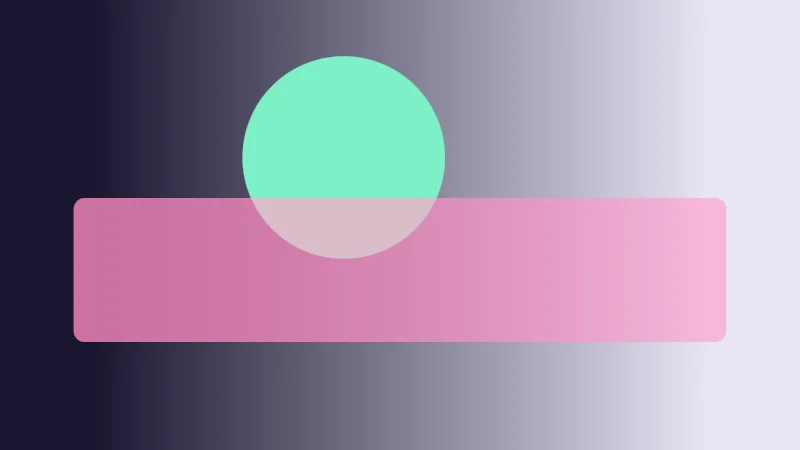
Rendered in Unity 2022.3.22f1 from the Copy for Unity shader, with the settings this demo starts with.
// What the common Blend lines do, worked out by hand. The pink bar is what frag returns (the source);
// under it is what the screen already holds (the destination): a dark to light ramp and a mint disc.
#include "sdf2d"

uniform float _Mode;   // @select = 0 | Blend | Traditional=0, Premultiplied=1, Additive=2, Soft additive=3, Multiplicative=4 | Which Blend line draws the pink bar.
uniform float _Alpha;  // @range 0 1 0.01 = 0.6 | Alpha | The alpha frag returns with the pink color.

float4 shade(float2 uv)
{
    float2 p = centered(uv);
    float3 one = float3(1.0, 1.0, 1.0);

    // dst: what is on screen already.
    float3 dst = tint(float3(0.01, 0.008, 0.03), float3(0.8, 0.78, 0.9), saturate(uv.x * 1.3 - 0.15));
    dst = lerp(dst, series1(), fillAA(sdCircle(p - float2(-0.25, 0.3), 0.45)));

    // src: what frag returns. A premultiplied shader has already multiplied its color by alpha.
    int mode = int(_Mode + 0.5);
    float a = _Alpha;
    float3 src = mode == 1 ? series2() * a : series2();

    // The two words after Blend, as numbers.
    float3 srcFactor = one * a;                                            // Blend SrcAlpha OneMinusSrcAlpha
    float3 dstFactor = one * (1.0 - a);
    if (mode == 1) { srcFactor = one; }                                    // Blend One OneMinusSrcAlpha
    if (mode == 2) { srcFactor = one; dstFactor = one; }                   // Blend One One
    if (mode == 3) { srcFactor = one - dst; dstFactor = one; }             // Blend OneMinusDstColor One
    if (mode == 4) { srcFactor = dst; dstFactor = float3(0.0, 0.0, 0.0); } // Blend DstColor Zero

    float3 result = src * srcFactor + dst * dstFactor;

    // The graphics card blends only where the bar covers the screen.
    float bar = sdRoundedBox(p - float2(0.0, -0.2), float2(1.45, 0.32), 0.05);
    return float4(saturate(lerp(dst, result, fillAA(bar))), 1.0);
}
// What the common Blend lines do, worked out by hand. The pink bar is what frag returns (the source);
// under it is what the screen already holds (the destination): a dark to light ramp and a mint disc.
#include "sdf2d"
uniform float _Mode; // @select = 0 | Blend | Traditional=0, Premultiplied=1, Additive=2, Soft additive=3, Multiplicative=4 | Which Blend line draws the pink bar.
uniform float _Alpha; // @range 0 1 0.01 = 0.6 | Alpha | The alpha frag returns with the pink color.
vec4 shade(vec2 uv)
{
vec2 p = centered(uv);
vec3 one = vec3(1.0, 1.0, 1.0);
// dst: what is on screen already.
vec3 dst = tint(vec3(0.01, 0.008, 0.03), vec3(0.8, 0.78, 0.9), saturate(uv.x * 1.3 - 0.15));
dst = mix(dst, series1(), fillAA(sdCircle(p - vec2(-0.25, 0.3), 0.45)));
// src: what frag returns. A premultiplied shader has already multiplied its color by alpha.
int mode = int(_Mode + 0.5);
float a = _Alpha;
vec3 src = mode == 1 ? series2() * a : series2();
// The two words after Blend, as numbers.
vec3 srcFactor = one * a; // Blend SrcAlpha OneMinusSrcAlpha
vec3 dstFactor = one * (1.0 - a);
if (mode == 1) { srcFactor = one; } // Blend One OneMinusSrcAlpha
if (mode == 2) { srcFactor = one; dstFactor = one; } // Blend One One
if (mode == 3) { srcFactor = one - dst; dstFactor = one; } // Blend OneMinusDstColor One
if (mode == 4) { srcFactor = dst; dstFactor = vec3(0.0, 0.0, 0.0); } // Blend DstColor Zero
vec3 result = src * srcFactor + dst * dstFactor;
// The graphics card blends only where the bar covers the screen.
float bar = sdRoundedBox(p - vec2(0.0, -0.2), vec2(1.45, 0.32), 0.05);
return vec4(saturate(mix(dst, result, fillAA(bar))), 1.0);
}Names in this code (24)
_Alpha- Slider "Alpha". The alpha frag returns with the pink color. From 0 to 1, starts at 0.6.
_Mode- Choice "Blend". Which Blend line draws the pink bar.
a- Declared on line 19: float a = _Alpha;
bar- Declared on line 33: float bar = sdRoundedBox(p - float2(0.0, -0.2), float2(1.45, 0.32), 0.05);
centered- float2 centered(float2 uv). Square coordinates with the origin in the middle: the short side of the picture spans -1..1. (common library)
dst- Declared on line 14: float3 dst = tint(float3(0.01, 0.008, 0.03), float3(0.8, 0.78, 0.9), saturate(uv.x * 1.3 - 0.15));
dstFactor- Declared on line 24: float3 dstFactor = one * (1.0 - a);
fillAA- float fillAA(float d). Anti-aliased coverage of a signed distance: 1 inside, 0 outside, a one pixel ramp at the edge. (common library)
include- Pulls another file into this one, for example UnityCG.cginc.
lerp- HLSL's blend from a (t = 0) to b (t = 1). GLSL calls it mix.
mode- Declared on line 18: int mode = int(_Mode + 0.5);
one- Declared on line 11: float3 one = float3(1.0, 1.0, 1.0);
p- Declared on line 10: float2 p = centered(uv);
result- Declared on line 30: float3 result = src * srcFactor + dst * dstFactor;
saturate- An HLSL function that clamps a value between 0 and 1.
sdCircle- float sdCircle(float2 p, float r) (sdf2d library)
sdRoundedBox- float sdRoundedBox(float2 p, float2 halfSize, float r) (sdf2d library)
series1- float3 series1() (common library)
series2- float3 series2() (common library)
shade- float4 shade(float2 uv)
src- Declared on line 20: float3 src = mode == 1 ? series2() * a : series2();
srcFactor- Declared on line 23: float3 srcFactor = one * a; // Blend SrcAlpha OneMinusSrcAlpha
tint- float3 tint(float3 a, float3 b, float t). Blends two colors in steps that look even to the eye (in sRGB), for value ramps such as distance bands. Edges and coverage still blend with lerp, in linear light, as light really adds up. (common library)
uv- A parameter of shade(), line 8: float2 uv.
Pick each line in the Blend menu and slide Alpha. The pink bar is what frag returns. Here frag mixes by hand, with the ramp and the mint disc standing in for the screen, so Copy for Unity has no Blend line. Premultiplied matches Traditional because frag multiplies its color by Alpha first, as that line expects. Additive, Soft additive and Multiplicative ignore the slider.
| Line | Option and look |
|---|---|
Blend SrcAlpha OneMinusSrcAlpha | Traditional, like tinted glass. |
Blend One OneMinusSrcAlpha | Premultiplied, the same look for a color already multiplied by its alpha. |
Blend One One | Additive. It only brightens, which suits glows. |
Blend OneMinusDstColor One | Soft additive, brightening gently but never past white. |
Blend DstColor Zero | Multiplicative. It only darkens, for shadows and tints. |
A see-through material puts it all together:
Tags
{
    "RenderType"="Transparent"
    "Queue"="Transparent"
}
ZWrite Off
Blend SrcAlpha OneMinusSrcAlpha
Its queue draws it after solid things, so they show through, and ZWrite Off keeps it from hiding things drawn later.
Every value, for looking things up
Queue
All SubShader tags go in one Tags block, on one line like Tags { "Queue"="Transparent" "RenderType"="Transparent" } or over several like the see-through example above. The tags in the Queue, RenderType and More SubShader tags tables all go in that same block, even where a row shows one alone or in a Tags line of its own.
| Tag, its turn, and what it’s for |
|---|
"Queue"="Background" (1000)Drawn before all the others, for things behind everything. |
"Queue"="Geometry" (2000)Solid things. The default. |
"Queue"="Geometry+1" (2001)A name plus a number is a turn of its own, here right after Geometry. |
"Queue"="AlphaTest" (2450)Cutouts. They’re solid surfaces with holes where alpha is low, drawn after the fully solid ones. |
"Queue"="AlphaTest+50" (2500)The last turn Unity counts as solid. From 2501 up, it counts as see-through. |
"Queue"="Transparent-1" (2999)A minus works too, here right before Transparent. |
"Queue"="Transparent" (3000)See-through things, drawn back to front. |
"Queue"="Overlay" (4000)Effects on top of everything, like lens flares. |
RenderType
Any word works. Unity’s built-in shaders use these:
| Tag and the shaders that use it |
|---|
"RenderType"="Opaque"Most solid shaders. |
"RenderType"="Transparent"Most see-through shaders, such as glass-like ones, particles and text. |
"RenderType"="TransparentCutout"Cutout shaders, and vegetation drawn in two passes. |
"RenderType"="Background"Skybox shaders. |
"RenderType"="Overlay"Halo and lens flare shaders. |
"RenderType"="TreeOpaque"The bark of terrain trees. |
"RenderType"="TreeTransparentCutout"The leaves of terrain trees. |
"RenderType"="TreeBillboard"Far terrain trees, drawn as flat pictures that face you. |
"RenderType"="Grass"Terrain grass. |
"RenderType"="GrassBillboard"Terrain grass drawn as flat pictures that face you. |
More SubShader tags
| Line and what it does |
|---|
Tags { "DisableBatching"="True" }Unity never merges this mesh with others to draw them in one go (dynamic batching). Merging moves the corners into world space, the whole scene’s shared coordinates, which breaks shaders that work in the mesh’s own space. |
Tags { "DisableBatching"="LODFading" }The same, but only for meshes in an LOD Group (simpler copies swapped in with distance) whose Fade Mode isn’t None. |
Tags { "DisableBatching"="False" }Merging is allowed. The default. |
Tags { "ForceNoShadowCasting"="True" }Casts no shadows. With forward rendering, Unity’s default way of lighting, and the old Vertex Lit path, it receives none either. False is the default. |
Tags { "IgnoreProjector"="True" }Projectors, which throw a picture onto whatever is under them, skip it. Meant for see-through things, which projectors can’t handle. Only in the built-in render pipeline, Unity’s older way of drawing a scene, which VRChat uses. False is the default. |
Tags { "PreviewType"="Plane" }The material preview shows a flat square. Skybox shows it as a sky, and Sphere, a ball, is the default. |
Tags { "CanUseSpriteAtlas"="False" }Warns that the shader needs each sprite’s own UVs, so the Legacy Sprite Packer shouldn’t pack the sprites into a shared texture. If they are packed, Unity shows an error in the Inspector. True is the default. |
Tags { "RenderPipeline"="UniversalPipeline" }The SubShader is only for URP. HDRenderPipeline means only for HDRP. URP and HDRP are Unity’s newer ways of drawing a scene (VRChat uses the older built-in one). Any other value, or no tag, means not for URP or HDRP. |
Tags { "VRCFallback"="Toon" }VRChat’s own tag, naming the shader VRChat shows instead when someone blocks yours in their Safety settings. Hidden hides the mesh. All values. |
Pass tags
In the Pass’s own line, like Tags { "LightMode"="ShadowCaster" }:
| Tag and what the pass does |
|---|
"LightMode"="Always"Draws in every case, with no lighting. The default. |
"LightMode"="ForwardBase"Forward rendering’s main pass. It brings in ambient light, the main directional light and lightmaps (light baked into textures). The less important lights come in too, done cheaply per corner or as soft light from all around. |
"LightMode"="ForwardAdd"Forward rendering again, once for each extra light worked out per pixel, added on top. |
"LightMode"="Deferred"For deferred shading, the other way to light a scene. The pass only stores each pixel’s color, which way it faces and how shiny it is in screen sized textures (the G-buffer), and Unity lights them all afterwards. |
"LightMode"="ShadowCaster"Draws only how far away the object is, into a shadow map or the camera’s depth texture. |
"LightMode"="MotionVectors"Works out how far each pixel of the object moved on screen since the last frame. |
"LightMode"="Vertex"The old Vertex Lit path for objects without lightmaps, with every light worked out per corner. |
"LightMode"="VertexLMRGBM"The old Vertex Lit path, for objects with lightmaps on PC and consoles, which pack light brighter than white into the lightmap (RGBM). |
"LightMode"="VertexLM"The same on mobile, where lightmaps hold light up to twice white (double LDR). |
"LightMode"="Meta"Never drawn on screen. Unity uses it only while baking lightmaps, or for Enlighten’s realtime light bouncing. |
Tags { "LightMode"="ForwardBase" "PassFlags"="OnlyDirectional" }Used in a ForwardBase pass with forward rendering, it hands the pass only the main directional light, ambient light and light probes. The less important lights are left out. |
Tags { "RequireOptions"="SoftVegetation" }Draws the pass only when Soft Vegetation is on in the Quality settings. |
Render state
Each line goes in a Pass, or in a SubShader to set it for all of its passes.
| Line | What it does |
|---|---|
Cull Back | Throws away triangles facing away from the camera, before frag runs. The default. |
Cull Front | Throws away triangles facing the camera, so you see the mesh’s inside, as outlines need. |
Cull Off | Keeps both sides, for double sided cloth or see-through things. |
ZWrite On | Each pixel stores its distance in the depth buffer, so things behind it get hidden. The default. |
ZWrite Off | Leaves the depth buffer alone, as see-through things usually want. |
ZClip True | Parts nearer than the camera’s near limit, or past its far limit, get cut off. The default. |
ZClip False | Those parts are squashed onto the limit instead. |
Offset -1, -1 | Pulls the depth closer, so a decal wins against the wall under it. The first number is scaled by how steeply the triangle slopes away from you, the second is a small fixed step. Positive numbers push away. |
ColorMask RGB | Writes only these channels, here all but alpha. Any mix of R, G, B and A works. Without the line, all four. |
ColorMask 0 | Writes no color at all, for a pass that only fills the depth or stencil buffer. |
ColorMask RGB 1 | A number after the channels sets them for only that render target, 0 to 7, for shaders that draw into several textures at once. |
AlphaToMask On | With MSAA, the anti-aliasing that checks several spots in each pixel, turns alpha into smooth cutout edges. Without MSAA, results differ between graphics cards. Off is the default. |
Conservative True | Draws every pixel a triangle touches at all, not only those whose middle it covers. Graphics cards that can’t do this ignore the line. False is the default. |
ZWrite [_ZWrite] | Any value can come from a material setting instead, by writing its name in square brackets. The setting holds the value as a number. For ZWrite, Off is 0 and On is 1. For Cull, Off is 0, Front 1 and Back 2. The Enum drawer [Enum(UnityEngine.Rendering.CullMode)] turns such a setting into a dropdown of those names. |
ZTest
| Line | Draws the pixel when it is |
|---|---|
ZTest Less | Nearer. |
ZTest LEqual | Nearer, or as near. The default. |
ZTest Equal | Exactly as near. |
ZTest GEqual | Farther, or as far. |
ZTest Greater | Farther. It shows only where something else covers it. |
ZTest NotEqual | Anything but exactly as near. |
ZTest Always | Anywhere, and nothing hides it. |
ZTest Never | Nowhere, so it never draws. |
ZTest Disabled | Anywhere, with the depth test switched off. |
Blend
| Line | Looks like |
|---|---|
Blend Off | Nothing is mixed, and the color replaces what’s on screen. The default. |
Blend SrcAlpha OneMinusSrcAlpha | Traditional, like tinted glass. |
Blend One OneMinusSrcAlpha | Premultiplied, the same look for a color already multiplied by its alpha. |
Blend One One | Additive, which only brightens. |
Blend OneMinusDstColor One | Soft additive, brightening gently but never past white. |
Blend DstColor Zero | Multiplicative, which only darkens. |
Blend DstColor SrcColor | 2x multiplicative. Where the shader’s color is below 0.5, half of white, the screen darkens, and above it the screen brightens. |
Blend One Zero, Zero One | After the comma come separate words for alpha. Here the color replaces the screen’s, and the screen keeps its alpha. |
Blend 1 One One | A number first sets only that render target, 0 to 7, for shaders that draw into several textures at once. |
Blend words
| Word | Multiplies by |
|---|---|
One | 1, which keeps the color as it is. |
Zero | 0, so the color drops out. |
SrcColor | The color frag returns, channel by channel. |
SrcAlpha | The alpha frag returns. |
DstColor | The color already on screen, channel by channel. |
DstAlpha | The alpha already on screen. |
OneMinusSrcColor | 1 minus the color frag returns. |
OneMinusSrcAlpha | 1 minus the alpha frag returns. |
OneMinusDstColor | 1 minus the color on screen. |
OneMinusDstAlpha | 1 minus the alpha on screen. |
SrcAlphaSaturate | The smaller of the alpha frag returns and 1 minus the alpha on screen. For the alpha channel it is 1. |
BlendOp
| Line | The result |
|---|---|
BlendOp Add | . The default. |
BlendOp Sub | . |
BlendOp RevSub | . |
BlendOp Min | The smaller of source and destination; Min and Max ignore the factors. |
BlendOp Max | The larger of source and destination. |
BlendOp LogicalXor and fifteen more | Logic on the stored numbers, which are kept as rows of on/off switches (bits), switch by switch. They need DirectX 11.1 or Vulkan. All sixteen: LogicalClear, LogicalSet, LogicalCopy, LogicalCopyInverted, LogicalNoop, LogicalInvert, LogicalAnd, LogicalNand, LogicalOr, LogicalNor, LogicalXor, LogicalEquiv, LogicalAndReverse, LogicalAndInverted, LogicalOrReverse, LogicalOrInverted. |
BlendOp Multiply and fourteen more | Blend modes like a paint program’s. They only work with OpenGL’s advanced blending. All fifteen: Multiply, Screen, Overlay, Darken, Lighten, ColorDodge, ColorBurn, HardLight, SoftLight, Difference, Exclusion, HSLHue, HSLSaturation, HSLColor, HSLLuminosity. |
Stencil
| Line | What it does |
|---|---|
Stencil { Ref 2 Comp Always Pass Replace } | This is the window, writing 2 wherever it draws. Give it an earlier queue than what’s seen through it. |
Stencil { Ref 2 Comp Equal } | The world behind the window, drawn only where 2 was written. |
Ref 2 | The pass’s own number, 0 to 255. The test compares it with the stored one, and Replace writes it. 0 by default. |
ReadMask 255 | The number is stored as 8 on/off switches (bits). This says which of them the test looks at. 255, all of them, is the default. |
WriteMask 255 | Which bits a write may change. 255 is the default, and 0 changes none (it doesn’t write a 0). |
Comp Equal | The test that compares Ref with the stored number. Always by default. |
Pass Replace | What to write when the stencil test and the depth test both pass. Keep by default. |
Fail Zero | What to write when the stencil test fails. Keep by default. |
ZFail IncrSat | What to write when the stencil test passes but the depth test fails. Keep by default. |
CompBack, PassBack, FailBack, ZFailBack | The same, only for triangles facing away. CompFront and the rest work only for triangles facing you. The plain ones win when both are set. |
Stencil tests
| Comp | Draws the pixel when Ref is |
|---|---|
Never | No value of Ref. Nothing draws. |
Less | Smaller than the stored number. |
Equal | The same as the stored number. |
LEqual | Smaller or the same. |
Greater | Bigger. |
NotEqual | Different. |
GEqual | Bigger or the same. |
Always | Anything, with no test at all. The default. |
Stencil writes
| Pass, Fail or ZFail | Writes |
|---|---|
Keep | Nothing, and the stored number stays. The default. |
Zero | 0. |
Replace | Ref. |
IncrSat | The number plus 1, stopping at 255. |
DecrSat | The number minus 1, stopping at 0. |
Invert | The number with all 8 of its on/off switches (bits) flipped, so 5 becomes 250. |
IncrWrap | The number plus 1, and 255 wraps round to 0. |
DecrWrap | The number minus 1, and 0 wraps round to 255. |
Picking a SubShader, and other lines
| Line | What it does |
|---|---|
LOD 300 | Goes in a SubShader and says how heavy it is. A script can set a limit, and Unity then skips SubShaders above it. There’s no limit by default. Put heavier SubShaders first. Unity’s Unlit shaders are 100, Standard is 300. |
Fallback "Unlit/Color" | At the end of the Shader block, it names the shader to use when none of the SubShaders can run. It matters for shadows too, since a shader casts them when any of its SubShaders, or any fallback, has a ShadowCaster pass. |
Fallback Off | No stand-in, so Unity shows its magenta error shader instead. |
CustomEditor "MyShaderGUI" | Names a C# class that draws the material’s settings its own way, like the tabbed panels of big toon shaders. It goes in the Shader block, after the SubShaders. |
Name "Outline" | The Pass’s name, written inside it and shown in the Frame Debugger (the Unity window that steps through a frame one drawing at a time). Unity stores it in capitals, so other shaders ask for OUTLINE. |
UsePass "MyToon/OUTLINE" | Copies a named pass from another shader into this SubShader. You write the shader’s name, a slash and the pass’s name in capitals. |
GrabPass { "_BackgroundTexture" } | Sits in a SubShader and copies what’s on screen so far into a texture later passes can read, for glass that bends what’s behind it. With a name, Unity grabs once per frame. GrabPass { } grabs again for each batch that uses it, as _GrabTexture. It’s slow, so grab sparingly. |
- A Unity shader is ShaderLab boxes around HLSL code, and its tags and render state say when and how it draws.
- Each Properties line is a name, a label, a type and a start value, read by the variable with the same name.
vertplaces the corners,fragcolors the pixels, and theUNITY_lines keep both eyes of a headset right.