Basics, part 9
One 4x4 matrix moves the whole mesh
In 3D, three columns of a matrix turn and stretch a mesh but can't move it. A fourth column holds the position, and that 4 by 4 matrix tells a shader where your mesh sits.
In the matrices lesson, a 2 by 2 matrix turned, stretched and slanted the F. It can’t move it anywhere, though, because (0, 0) always stays put. Your mesh in Unity lives in 3D, and a 3 by 3 matrix has the same problem. Its three columns say where the x, y and z arrows land, so it can turn and stretch the mesh, but the middle never moves.
So Unity adds a fourth column that holds the position, and gives every point a fourth number, , which switches that position on (1) or off (0). That 4 by 4 matrix is how Unity tells a shader where your mesh sits. I’ll show the trick in 2D first, where the extra column fits on a flat picture, and then go to 3D.
Turn on JavaScript to run this demo.
Rendered in Unity 2022.3.22f1 from the Copy for Unity shader, with the settings this demo starts with.
// Shared by the transform demos. Matrices that scale, turn and move, the letter F, a grid that follows a matrix,
// and the corner numbers. The demos work in world units, q = p / S, and multiply distances by S to draw them.
#include "sdf2d"

static const float S = 0.5; // one world unit, in centered() units

float cross2(float2 a, float2 b) { return a.x * b.y - a.y * b.x; }

// Scales, then turns by turnDegrees anticlockwise, then moves: T R S as one matrix, written row by row.
float3x3 trs2(float2 move, float turnDegrees, float2 scale)
{
    float a = radians(turnDegrees);
    float c = cos(a), s = sin(a);
    return float3x3(c * scale.x, -s * scale.y, move.x,
                    s * scale.x,  c * scale.y, move.y,
                    0.0,          0.0,         1.0);
}

// HLSL has no inverse(). Unity provides unity_WorldToObject, the inverse of unity_ObjectToWorld.
float3x3 inverseTrs2(float2 move, float turnDegrees, float2 scale)
{
    float a = radians(turnDegrees);
    float c = cos(a), s = sin(a);
    float3x3 back = float3x3(1.0, 0.0, -move.x, 0.0, 1.0, -move.y, 0.0, 0.0, 1.0);
    float3x3 unturn = float3x3(c, s, 0.0, -s, c, 0.0, 0.0, 0.0, 1.0);
    float3x3 unscale = float3x3(1.0 / scale.x, 0.0, 0.0, 0.0, 1.0 / scale.y, 0.0, 0.0, 0.0, 1.0);
    return mul(unscale, mul(unturn, back));
}

// Distance to the segment from a to b, also when a and b are the same point.
float sdEdge(float2 p, float2 a, float2 b)
{
    float2 pa = p - a, ba = b - a;
    float h = saturate(dot(pa, ba) / max(dot(ba, ba), 1e-8));
    return length(pa - ba * h);
}

// Signed distance to the parallelogram with one corner at `corner` and the edges e1 and e2 from it.
// A flat one (e1 and e2 on one line) has no inside.
float sdParallelogram(float2 p, float2 corner, float2 e1, float2 e2)
{
    float2 q = p - corner;
    float2 o = float2(0.0, 0.0);
    float d = min(min(sdEdge(q, o, e1), sdEdge(q, e2, e1 + e2)), min(sdEdge(q, o, e2), sdEdge(q, e1, e1 + e2)));
    float c = cross2(e1, e2);
    float a = cross2(q, e2) * sign(c), b = cross2(e1, q) * sign(c); // how far along e1 and e2, times abs(c)
    return (min(a, b) > 0.0 && max(a, b) < abs(c)) ? -d : d;
}

// The letter F after the matrix m, its bottom left corner on the object's origin. Corners go through m with
// w = 1, so they move. Edges go through with w = 0, so they only turn and stretch. The bars reach into the stem,
// so no seam shows where they meet.
float sdF(float2 q, float3x3 m)
{
    float d = sdParallelogram(q, mul(m, float3(0.0, 0.0, 1.0)).xy, mul(m, float3(0.25, 0.0, 0.0)).xy, mul(m, float3(0.0, 1.0, 0.0)).xy);
    d = min(d, sdParallelogram(q, mul(m, float3(0.0, 0.75, 1.0)).xy, mul(m, float3(0.8, 0.0, 0.0)).xy, mul(m, float3(0.0, 0.25, 0.0)).xy));
    return min(d, sdParallelogram(q, mul(m, float3(0.0, 0.4, 1.0)).xy, mul(m, float3(0.6, 0.0, 0.0)).xy, mul(m, float3(0.0, 0.2, 0.0)).xy));
}

// The object's own grid after m: 1 px lines through its whole steps, measured on screen. A family of lines
// fades out as it crowds together (gone below 4 px apart, full from 8 px), and a flattened m draws none.
float3 drawMappedGrid(float3 col, float2 q, float3x3 m, float3 ink)
{
    float2 i = m._m00_m10, j = m._m01_m11;
    float2 r = q - m._m02_m12; // from the object's origin
    float det = cross2(i, j);
    float safe = abs(det) < 0.01 ? 0.01 : det;
    float2 steps = float2(cross2(r, j), cross2(i, r)) / safe; // q in the object's own steps
    float2 gap = S * abs(safe) / max(float2(length(j), length(i)), 1e-6) / pixelSize(); // px from line to line
    float2 a = saturate(1.0 - abs(steps - round(steps)) * gap) * saturate(gap / 4.0 - 1.0);
    return lerp(col, ink, max(a.x, a.y) * step(0.01, abs(det)));
}

// Which segments a digit lights, one bit each: 1 top, 2 top right, 4 bottom right, 8 bottom,
// 16 bottom left, 32 top left, 64 middle.
int segments(int n)
{
    if (n == 0) return 63;
    if (n == 1) return 6;
    if (n == 2) return 91;
    if (n == 3) return 79;
    if (n == 4) return 102;
    if (n == 5) return 109;
    if (n == 6) return 125;
    if (n == 7) return 7;
    if (n == 8) return 127;
    return 111;
}

// Distance to one digit in a box 0.5 wide and 1 tall, its bottom left corner at the origin.
float sdDigit(float2 q, int n)
{
    if (n == 1) q.x += 0.25; // a one stands in the middle of its box
    int m = segments(n);
    float d = 1e5;
    if ((m & 1) != 0) d = min(d, sdSegment(q, float2(0.0, 1.0), float2(0.5, 1.0)));
    if ((m & 2) != 0) d = min(d, sdSegment(q, float2(0.5, 1.0), float2(0.5, 0.5)));
    if ((m & 4) != 0) d = min(d, sdSegment(q, float2(0.5, 0.5), float2(0.5, 0.0)));
    if ((m & 8) != 0) d = min(d, sdSegment(q, float2(0.0, 0.0), float2(0.5, 0.0)));
    if ((m & 16) != 0) d = min(d, sdSegment(q, float2(0.0, 0.0), float2(0.0, 0.5)));
    if ((m & 32) != 0) d = min(d, sdSegment(q, float2(0.0, 0.5), float2(0.0, 1.0)));
    if ((m & 64) != 0) d = min(d, sdSegment(q, float2(0.0, 0.5), float2(0.5, 0.5)));
    return d;
}

// Signed distance to v written like -10.25, digits 1 tall, in a box centred on the origin with room for two whole
// digits, so the decimal point stays put. v stays within -99.99 and 99.99.
float sdNumber(float2 p, float v)
{
    float2 q = p + float2(1.785, 0.5);
    int c = int(floor(min(abs(v), 99.99) * 100.0 + 0.5));
    float d = length(q - float2(2.02, 0.0)); // the decimal point
    float minus = c >= 1000 ? 0.0 : 0.7;     // the minus sign sits right in front of the first digit
    if (v < 0.0 && c > 0) d = min(d, sdSegment(q, float2(0.15 + minus, 0.5), float2(0.5 + minus, 0.5)));
    if (c >= 1000) d = min(d, sdDigit(q - float2(0.62, 0.0), c / 1000));
    d = min(d, sdDigit(q - float2(1.32, 0.0), (c / 100) % 10));
    d = min(d, sdDigit(q - float2(2.22, 0.0), (c / 10) % 10));
    d = min(d, sdDigit(q - float2(2.92, 0.0), c % 10));
    return d - 0.07;
}


// ----

// One 3 by 3 matrix turns the F and moves it to where you drag, and w decides whether the arrow moves along.
#include "diagram"

uniform float _Turn; // @range -180 180 1 = 30 | Turn | How far the F is turned, in degrees.
uniform float _W;    // @select = 1 | w | Direction=0, Point=1 | The arrow's third number. 1 makes it a point that moves with the F, 0 a direction that only turns.

// Three numbers in a column between brackets, digits `size` tall, the top left corner at `at`. The numbers here
// stay below 10, so the column is centred on the room a minus sign and one whole digit need.
float3 drawColumn(float3 col, float2 p, float2 at, float3 v, float size, float3 ink)
{
    float2 q = (p - at) / size;
    float px = pixelSize() / size;
    float2 r = float2(abs(q.x - 1.8), q.y); // both brackets at once
    float brackets = sdSegment(r, float2(1.75, -0.06), float2(1.75, -4.86));
    brackets = min(brackets, sdSegment(r, float2(1.75, -0.06), float2(1.45, -0.06)));
    brackets = min(brackets, sdSegment(r, float2(1.75, -4.86), float2(1.45, -4.86))) - 0.06;
    float digits = sdNumber(q - float2(1.45, -0.86), v.x);
    digits = min(digits, sdNumber(q - float2(1.45, -2.46), v.y));
    digits = min(digits, sdNumber(q - float2(1.45, -4.06), v.z));
    col = lerp(col, themeMuted(), saturate(0.5 - brackets / px));
    return lerp(col, ink, saturate(0.5 - digits / px));
}

float4 shade(float2 uv)
{
    float2 p = centered(uv);
    float2 q = p / S;                      // world units
    float2 corner = pointerCentered() / S; // the F's corner, where you drag
    float3x3 M = trs2(corner, _Turn, float2(1.0, 1.0));
    float3 tip = mul(M, float3(0.8, 1.0, _W)); // with w = 1, the F's top right corner

    float3 col = drawGrid(themeSurface(), p, S);
    col = fillShape(col, sdF(q, M) * S, series3(), 1.0);
    if (length(tip.xy) > 0.02) col = drawArrow(col, p, float2(0.0, 0.0), tip.xy * S, 2.5, series1());
    col = drawCircle(col, p, corner * S, 0.06, 1.5, themeInk());
    col = drawColumn(col, p, float2(-1.66, 0.92), tip, 0.12, series1());
    return float4(col, 1.0);
}
// Shared by the transform demos. Matrices that scale, turn and move, the letter F, a grid that follows a matrix,
// and the corner numbers. The demos work in world units, q = p / S, and multiply distances by S to draw them.
#include "sdf2d"
const float S = 0.5; // one world unit, in centered() units
float cross2(vec2 a, vec2 b) { return a.x * b.y - a.y * b.x; }
// Scales, then turns by turnDegrees anticlockwise, then moves: T R S as one matrix, written row by row.
mat3 trs2(vec2 move, float turnDegrees, vec2 scale)
{
float a = radians(turnDegrees);
float c = cos(a), s = sin(a);
return mat3(c * scale.x, -s * scale.y, move.x,
s * scale.x, c * scale.y, move.y,
0.0, 0.0, 1.0);
}
// HLSL has no inverse(). Unity provides unity_WorldToObject, the inverse of unity_ObjectToWorld.
mat3 inverseTrs2(vec2 move, float turnDegrees, vec2 scale)
{
float a = radians(turnDegrees);
float c = cos(a), s = sin(a);
mat3 back = mat3(1.0, 0.0, -move.x, 0.0, 1.0, -move.y, 0.0, 0.0, 1.0);
mat3 unturn = mat3(c, s, 0.0, -s, c, 0.0, 0.0, 0.0, 1.0);
mat3 unscale = mat3(1.0 / scale.x, 0.0, 0.0, 0.0, 1.0 / scale.y, 0.0, 0.0, 0.0, 1.0);
return ((back * unturn) * unscale);
}
// Distance to the segment from a to b, also when a and b are the same point.
float sdEdge(vec2 p, vec2 a, vec2 b)
{
vec2 pa = p - a, ba = b - a;
float h = saturate(dot(pa, ba) / max(dot(ba, ba), 1e-8));
return length(pa - ba * h);
}
// Signed distance to the parallelogram with one corner at `corner` and the edges e1 and e2 from it.
// A flat one (e1 and e2 on one line) has no inside.
float sdParallelogram(vec2 p, vec2 corner, vec2 e1, vec2 e2)
{
vec2 q = p - corner;
vec2 o = vec2(0.0, 0.0);
float d = min(min(sdEdge(q, o, e1), sdEdge(q, e2, e1 + e2)), min(sdEdge(q, o, e2), sdEdge(q, e1, e1 + e2)));
float c = cross2(e1, e2);
float a = cross2(q, e2) * sign(c), b = cross2(e1, q) * sign(c); // how far along e1 and e2, times abs(c)
return (min(a, b) > 0.0 && max(a, b) < abs(c)) ? -d : d;
}
// The letter F after the matrix m, its bottom left corner on the object's origin. Corners go through m with
// w = 1, so they move. Edges go through with w = 0, so they only turn and stretch. The bars reach into the stem,
// so no seam shows where they meet.
float sdF(vec2 q, mat3 m)
{
float d = sdParallelogram(q, (vec3(0.0, 0.0, 1.0) * m).xy, (vec3(0.25, 0.0, 0.0) * m).xy, (vec3(0.0, 1.0, 0.0) * m).xy);
d = min(d, sdParallelogram(q, (vec3(0.0, 0.75, 1.0) * m).xy, (vec3(0.8, 0.0, 0.0) * m).xy, (vec3(0.0, 0.25, 0.0) * m).xy));
return min(d, sdParallelogram(q, (vec3(0.0, 0.4, 1.0) * m).xy, (vec3(0.6, 0.0, 0.0) * m).xy, (vec3(0.0, 0.2, 0.0) * m).xy));
}
// The object's own grid after m: 1 px lines through its whole steps, measured on screen. A family of lines
// fades out as it crowds together (gone below 4 px apart, full from 8 px), and a flattened m draws none.
vec3 drawMappedGrid(vec3 col, vec2 q, mat3 m, vec3 ink)
{
vec2 i = vec2(m[0][0], m[1][0]), j = vec2(m[0][1], m[1][1]);
vec2 r = q - vec2(m[0][2], m[1][2]); // from the object's origin
float det = cross2(i, j);
float safe = abs(det) < 0.01 ? 0.01 : det;
vec2 steps = vec2(cross2(r, j), cross2(i, r)) / safe; // q in the object's own steps
vec2 gap = S * abs(safe) / max(vec2(length(j), length(i)), 1e-6) / pixelSize(); // px from line to line
vec2 a = saturate(1.0 - abs(steps - round(steps)) * gap) * saturate(gap / 4.0 - 1.0);
return mix(col, ink, max(a.x, a.y) * step(0.01, abs(det)));
}
// Which segments a digit lights, one bit each: 1 top, 2 top right, 4 bottom right, 8 bottom,
// 16 bottom left, 32 top left, 64 middle.
int segments(int n)
{
if (n == 0) return 63;
if (n == 1) return 6;
if (n == 2) return 91;
if (n == 3) return 79;
if (n == 4) return 102;
if (n == 5) return 109;
if (n == 6) return 125;
if (n == 7) return 7;
if (n == 8) return 127;
return 111;
}
// Distance to one digit in a box 0.5 wide and 1 tall, its bottom left corner at the origin.
float sdDigit(vec2 q, int n)
{
if (n == 1) q.x += 0.25; // a one stands in the middle of its box
int m = segments(n);
float d = 1e5;
if ((m & 1) != 0) d = min(d, sdSegment(q, vec2(0.0, 1.0), vec2(0.5, 1.0)));
if ((m & 2) != 0) d = min(d, sdSegment(q, vec2(0.5, 1.0), vec2(0.5, 0.5)));
if ((m & 4) != 0) d = min(d, sdSegment(q, vec2(0.5, 0.5), vec2(0.5, 0.0)));
if ((m & 8) != 0) d = min(d, sdSegment(q, vec2(0.0, 0.0), vec2(0.5, 0.0)));
if ((m & 16) != 0) d = min(d, sdSegment(q, vec2(0.0, 0.0), vec2(0.0, 0.5)));
if ((m & 32) != 0) d = min(d, sdSegment(q, vec2(0.0, 0.5), vec2(0.0, 1.0)));
if ((m & 64) != 0) d = min(d, sdSegment(q, vec2(0.0, 0.5), vec2(0.5, 0.5)));
return d;
}
// Signed distance to v written like -10.25, digits 1 tall, in a box centred on the origin with room for two whole
// digits, so the decimal point stays put. v stays within -99.99 and 99.99.
float sdNumber(vec2 p, float v)
{
vec2 q = p + vec2(1.785, 0.5);
int c = int(floor(min(abs(v), 99.99) * 100.0 + 0.5));
float d = length(q - vec2(2.02, 0.0)); // the decimal point
float minus = c >= 1000 ? 0.0 : 0.7; // the minus sign sits right in front of the first digit
if (v < 0.0 && c > 0) d = min(d, sdSegment(q, vec2(0.15 + minus, 0.5), vec2(0.5 + minus, 0.5)));
if (c >= 1000) d = min(d, sdDigit(q - vec2(0.62, 0.0), c / 1000));
d = min(d, sdDigit(q - vec2(1.32, 0.0), (c / 100) % 10));
d = min(d, sdDigit(q - vec2(2.22, 0.0), (c / 10) % 10));
d = min(d, sdDigit(q - vec2(2.92, 0.0), c % 10));
return d - 0.07;
}
// ----
// One 3 by 3 matrix turns the F and moves it to where you drag, and w decides whether the arrow moves along.
#include "diagram"
uniform float _Turn; // @range -180 180 1 = 30 | Turn | How far the F is turned, in degrees.
uniform float _W; // @select = 1 | w | Direction=0, Point=1 | The arrow's third number. 1 makes it a point that moves with the F, 0 a direction that only turns.
// Three numbers in a column between brackets, digits `size` tall, the top left corner at `at`. The numbers here
// stay below 10, so the column is centred on the room a minus sign and one whole digit need.
vec3 drawColumn(vec3 col, vec2 p, vec2 at, vec3 v, float size, vec3 ink)
{
vec2 q = (p - at) / size;
float px = pixelSize() / size;
vec2 r = vec2(abs(q.x - 1.8), q.y); // both brackets at once
float brackets = sdSegment(r, vec2(1.75, -0.06), vec2(1.75, -4.86));
brackets = min(brackets, sdSegment(r, vec2(1.75, -0.06), vec2(1.45, -0.06)));
brackets = min(brackets, sdSegment(r, vec2(1.75, -4.86), vec2(1.45, -4.86))) - 0.06;
float digits = sdNumber(q - vec2(1.45, -0.86), v.x);
digits = min(digits, sdNumber(q - vec2(1.45, -2.46), v.y));
digits = min(digits, sdNumber(q - vec2(1.45, -4.06), v.z));
col = mix(col, themeMuted(), saturate(0.5 - brackets / px));
return mix(col, ink, saturate(0.5 - digits / px));
}
vec4 shade(vec2 uv)
{
vec2 p = centered(uv);
vec2 q = p / S; // world units
vec2 corner = pointerCentered() / S; // the F's corner, where you drag
mat3 M = trs2(corner, _Turn, vec2(1.0, 1.0));
vec3 tip = (vec3(0.8, 1.0, _W) * M); // with w = 1, the F's top right corner
vec3 col = drawGrid(themeSurface(), p, S);
col = fillShape(col, sdF(q, M) * S, series3(), 1.0);
if (length(tip.xy) > 0.02) col = drawArrow(col, p, vec2(0.0, 0.0), tip.xy * S, 2.5, series1());
col = drawCircle(col, p, corner * S, 0.06, 1.5, themeInk());
col = drawColumn(col, p, vec2(-1.66, 0.92), tip, 0.12, series1());
return vec4(col, 1.0);
}Names in this code (59)
_Turn- Slider "Turn". How far the F is turned, in degrees. From -180 to 180, starts at 30.
_W- Choice "w". The arrow's third number. 1 makes it a point that moves with the F, 0 a direction that only turns.
at- A parameter of drawColumn(), line 9: float2 at.
brackets- Declared on line 14: float brackets = sdSegment(r, float2(1.75, -0.06), float2(1.75, -4.86));
centered- float2 centered(float2 uv). Square coordinates with the origin in the middle: the short side of the picture spans -1..1. (common library)
col- A parameter of drawColumn(), line 9: float3 col.
corner- Declared on line 28: float2 corner = pointerCentered() / S; // the F's corner, where you drag
cross2- float cross2(float2 a, float2 b) (this article's helper code)
digits- Declared on line 17: float digits = sdNumber(q - float2(1.45, -0.86), v.x);
drawArrow- float3 drawArrow(float3 col, float2 p, float2 a, float2 b, float widthPx, float3 ink) (diagram library)
drawCircle- float3 drawCircle(float3 col, float2 p, float2 c, float r, float widthPx, float3 ink) (diagram library)
drawColumn- float3 drawColumn(float3 col, float2 p, float2 at, float3 v, float size, float3 ink). Three numbers in a column between brackets, digits `size` tall, the top left corner at `at`. The numbers here stay below 10, so the column is centred on the room a minus sign and one whole digit need.
drawGrid- float3 drawGrid(float3 col, float2 p, float spacing) (diagram library)
drawMappedGrid- float3 drawMappedGrid(float3 col, float2 q, float3x3 m, float3 ink). The object's own grid after m: 1 px lines through its whole steps, measured on screen. A family of lines fades out as it crowds together (gone below 4 px apart, full from 8 px), and a flattened m draws none. (this article's helper code)
fillShape- float3 fillShape(float3 col, float d, float3 ink, float alpha). Fill or outline any signed distance d (in centered() units). alpha tints evenly for the eye; the edge itself blends in linear light like any coverage. (diagram library)
float3x3- An HLSL 3 by 3 matrix that rotates and scales directions.
include- Pulls another file into this one, for example UnityCG.cginc.
ink- A parameter of drawColumn(), line 9: float3 ink.
inverseTrs2- float3x3 inverseTrs2(float2 move, float turnDegrees, float2 scale). HLSL has no inverse(). Unity provides unity_WorldToObject, the inverse of unity_ObjectToWorld. (this article's helper code)
lerp- HLSL's blend from a (t = 0) to b (t = 1). GLSL calls it mix.
M- Declared on line 29: float3x3 M = trs2(corner, _Turn, float2(1.0, 1.0));
mul- Matrix times vector or matrix times matrix in HLSL. mul(M, v) applies M to v.
p- A parameter of drawColumn(), line 9: float2 p.
pixelSize- float pixelSize() (common library)
pointerCentered- float2 pointerCentered(). The pointer (or the _Pointer material setting in Unity) in the same coordinates as centered(). (common library)
px- Declared on line 12: float px = pixelSize() / size;
q- Declared on line 11: float2 q = (p - at) / size;
r- Declared on line 13: float2 r = float2(abs(q.x - 1.8), q.y); // both brackets at once
saturate- An HLSL function that clamps a value between 0 and 1.
sdDigit- float sdDigit(float2 q, int n). Distance to one digit in a box 0.5 wide and 1 tall, its bottom left corner at the origin. (this article's helper code)
sdEdge- float sdEdge(float2 p, float2 a, float2 b). Distance to the segment from a to b, also when a and b are the same point. (this article's helper code)
sdF- float sdF(float2 q, float3x3 m). The letter F after the matrix m, its bottom left corner on the object's origin. Corners go through m with w = 1, so they move. Edges go through with w = 0, so they only turn and stretch. The bars reach into the stem, so no seam shows where they meet. (this article's helper code)
sdNumber- float sdNumber(float2 p, float v). Signed distance to v written like -10.25, digits 1 tall, in a box centred on the origin with room for two whole digits, so the decimal point stays put. v stays within -99.99 and 99.99. (this article's helper code)
sdParallelogram- float sdParallelogram(float2 p, float2 corner, float2 e1, float2 e2). Signed distance to the parallelogram with one corner at `corner` and the edges e1 and e2 from it. A flat one (e1 and e2 on one line) has no inside. (this article's helper code)
sdSegment- float sdSegment(float2 p, float2 a, float2 b) (sdf2d library)
segments- int segments(int n). Which segments a digit lights, one bit each: 1 top, 2 top right, 4 bottom right, 8 bottom, 16 bottom left, 32 top left, 64 middle. (this article's helper code)
series1- float3 series1() (common library)
series3- float3 series3() (common library)
shade- float4 shade(float2 uv)
size- A parameter of drawColumn(), line 9: float size.
themeInk- float3 themeInk() (common library)
themeMuted- float3 themeMuted() (common library)
themeSurface- float3 themeSurface(). The dusk stage colors, in linear light. Series colors are used in this order: mint, pink, butter. (common library)
tip- Declared on line 30: float3 tip = mul(M, float3(0.8, 1.0, _W)); // with w = 1, the F's top right corner
trs2- float3x3 trs2(float2 move, float turnDegrees, float2 scale). Scales, then turns by turnDegrees anticlockwise, then moves: T R S as one matrix, written row by row. (this article's helper code)
uv- A parameter of shade(), line 24: float2 uv.
v- A parameter of drawColumn(), line 9: float3 v.
abs- abs(x) is x without its minus sign. abs(-0.3) = 0.3.
cos- cos(a) is the cosine of the angle a, in radians.
dot- dot(a, b) multiplies matching parts and adds them up. For unit vectors it is the cosine of the angle between them.
floor- floor(x) rounds down to the largest whole number not above x. floor(2.7) = 2, floor(-0.5) = -1.
length- length(v) says how long the vector v is, sqrt(x² + y²).
max- max(a, b) picks the larger of the two.
min- min(a, b) picks the smaller of the two.
radians- radians(deg) converts degrees to radians.
round- round(x) is the nearest whole number to x.
sign- sign(x) gives -1 for negative x, 0 for zero and 1 for positive x.
sin- sin(a) is the sine of the angle a, in radians.
step- A hard switch. step(edge, x) is 0 when x < edge, otherwise 1.
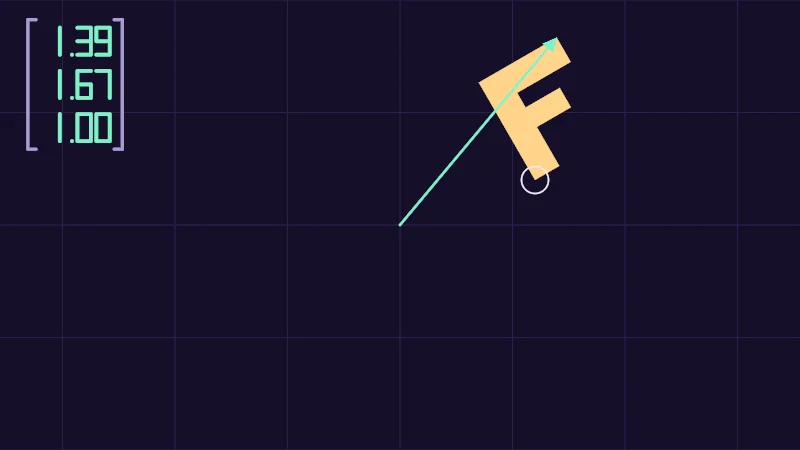
Drag the F by its corner, and the mint arrow rides along to its top corner. Then set w to Direction. Now the arrow stays put however far you drag, and it only follows Turn.
One more number
A matrix times (0, 0) is 0 of its first column plus 0 of its second, which is (0, 0) again. No numbers in the matrix can change that.
So let’s give every 2D point a third number, , and set it to 1. A 3 by 3 matrix has a third column, , and the point gets one whole added on:
and are the mint and pink columns from the matrices lesson, still where the two arrows land. is new, and it’s the move. The bottom row, (0, 0, 1), hands back as it was. In the demo above, is wherever you drag the F’s corner. This extra number is what the books below mean by homogeneous.
Points move, directions don’t
Now set to 0. Then is 0 too, so the move drops out and only the turn and stretch are left. That suits a direction, like the way a surface faces. It should turn with the mesh but never move. So points get and directions , like the w switch in the demo.
Mix them up and it bites. Put a point through the matrix as float4(p, 0.0), and the mesh’s position quietly drops out.
Unity’s own UnityObjectToWorldDir takes another road. It multiplies by (float3x3)unity_ObjectToWorld, the top left 3 by 3 corner of Unity’s 4 by 4 matrix, which leaves the position out. Then it normalizes the answer to length 1.
Normals, the arrows pointing straight out of a surface, are the exception. When a mesh is stretched more one way than another, they need the inverse transpose. UnityObjectToWorldNormal gets it with mul(norm, (float3x3)unity_WorldToObject), the row trick from the matrices lesson, and a later lesson on light explains why.
Three arrows and a position
In 3D, points get a fourth number, and Unity’s unity_ObjectToWorld is 4 by 4. The Unity Manual calls it the model matrix, and UNITY_MATRIX_M is another name for it. Its first three columns are where the mesh’s own x, y and z arrows land in the world, and the fourth is the position, the from before.
Say a mesh with no parent has Position (2, 0, 1), Rotation Y = 90 and Scale (1, 1, 1) in its Transform. The turn sends x to (0, 0, -1) and z to (1, 0, 0), and y stays. The position moves all three, and the point (1, 1, 0) with lands on (2, 1, 0).
4: (1, 1, 0) with w = 1 lands on (2, 1, 0).
Here’s the whole matrix, and the point going through it:
_m02, row 0 and column 2 counted from 0, is the 1 at the top of the butter column, and a shader reads it as unity_ObjectToWorld._m02. _m20 is the -1 in the mint one. The point takes 1 of mint, 1 of pink, none of butter and the position once. Pick direction in the figure, and the position drops out, leaving (0, 1, -1).
Read it backwards
Unity builds that matrix from the Transform’s three parts in a fixed order. A point is scaled first, then turned, then moved. As matrices that’s mul(T, mul(R, S)), where S scales, R turns and T moves. Like mul(A, B) in the matrices lesson, it reads from right to left.
The order matters, because a turn always swings around the origin. Take this one slowly. Here the F starts with its corner on the origin. Scaling first makes it twice as wide where it stands, the turn swings it 90 degrees around the origin, and the move takes its corner to (2, 1), the matrix’s last column.
4: Then move by (2, 1), and the corner lands on (2, 1).
Switch the figure to move, turn, scale, and the turn swings the moved F around the origin like a door. Its corner ends up on (-2, 2).
Same point, two sets of numbers
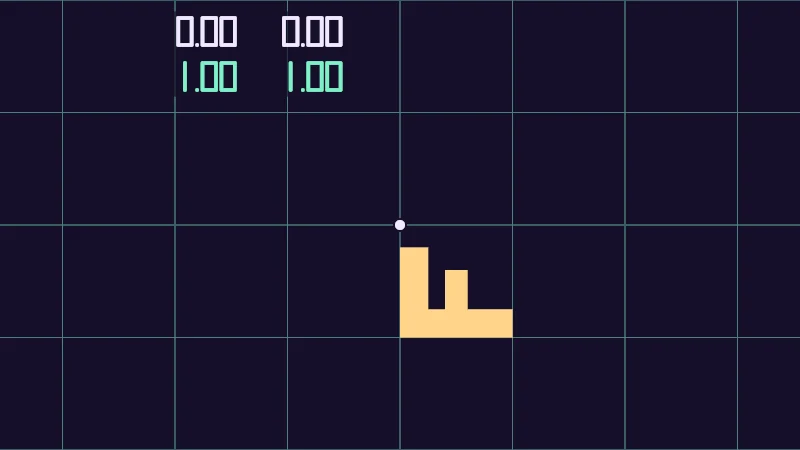
Every corner of a mesh has two sets of numbers. Its object numbers say where it sits on the mesh’s own grid, counted from its pivot. Its world numbers say where it sits in the scene. Both name the same point, and I think of them as two addresses for one house. unity_ObjectToWorld takes object numbers to world numbers, and unity_WorldToObject brings them back. In the demo, the F with its mint grid plays the mesh.
Turn on JavaScript to run this demo.
Rendered in Unity 2022.3.22f1 from the Copy for Unity shader, with the settings this demo starts with.
// Uses the helper code shown with an earlier figure on this page.

// ----

// A dot you drag, with its numbers in the world and its numbers on the object's own turned grid.
#include "diagram"

uniform float _Turn; // @range -180 180 1 = 90 | Turn | How far the object is turned, in degrees.
uniform float _Size; // @range 0.5 2 0.01 = 1 | Scale | How big the object is.

static const float2 POSITION = float2(1.0, -1.0); // where the object's corner sits, in world units

float4 shade(float2 uv)
{
    float2 p = centered(uv);
    float2 q = p / S;                    // world units
    float2 spot = pointerCentered() / S; // the dot you drag, in world units
    float3x3 M = trs2(POSITION, _Turn, float2(_Size, _Size));
    float2 inObject = mul(inverseTrs2(POSITION, _Turn, float2(_Size, _Size)), float3(spot, 1.0)).xy;

    float3 col = drawGrid(themeSurface(), p, S);
    col = drawMappedGrid(col, q, M, tint(themeSurface(), series1(), 0.5));
    float panel = sdRoundedBox(p - float2(-0.69, 0.76), float2(0.48, 0.19), 0.04); // a dark card behind the numbers
    col = lerp(col, themeSurface(), 0.85 * saturate(0.5 - panel / pixelSize()));
    col = fillShape(col, sdF(q, M) * S, series3(), 1.0);
    col = drawDot(col, p, spot * S, 5.0, themeInk());

    float worldDigits = min(sdNumber((p - float2(-0.93, 0.86)) / 0.12, spot.x), sdNumber((p - float2(-0.46, 0.86)) / 0.12, spot.y));
    float objectDigits = min(sdNumber((p - float2(-0.93, 0.66)) / 0.12, inObject.x), sdNumber((p - float2(-0.46, 0.66)) / 0.12, inObject.y));
    col = lerp(col, themeInk(), saturate(0.5 - worldDigits * 0.12 / pixelSize()));
    col = lerp(col, series1(), saturate(0.5 - objectDigits * 0.12 / pixelSize()));
    return float4(col, 1.0);
}
// Uses the helper code shown with an earlier figure on this page.
// ----
// A dot you drag, with its numbers in the world and its numbers on the object's own turned grid.
#include "diagram"
uniform float _Turn; // @range -180 180 1 = 90 | Turn | How far the object is turned, in degrees.
uniform float _Size; // @range 0.5 2 0.01 = 1 | Scale | How big the object is.
const vec2 POSITION = vec2(1.0, -1.0); // where the object's corner sits, in world units
vec4 shade(vec2 uv)
{
vec2 p = centered(uv);
vec2 q = p / S; // world units
vec2 spot = pointerCentered() / S; // the dot you drag, in world units
mat3 M = trs2(POSITION, _Turn, vec2(_Size, _Size));
vec2 inObject = (vec3(spot, 1.0) * inverseTrs2(POSITION, _Turn, vec2(_Size, _Size))).xy;
vec3 col = drawGrid(themeSurface(), p, S);
col = drawMappedGrid(col, q, M, tint(themeSurface(), series1(), 0.5));
float panel = sdRoundedBox(p - vec2(-0.69, 0.76), vec2(0.48, 0.19), 0.04); // a dark card behind the numbers
col = mix(col, themeSurface(), 0.85 * saturate(0.5 - panel / pixelSize()));
col = fillShape(col, sdF(q, M) * S, series3(), 1.0);
col = drawDot(col, p, spot * S, 5.0, themeInk());
float worldDigits = min(sdNumber((p - vec2(-0.93, 0.86)) / 0.12, spot.x), sdNumber((p - vec2(-0.46, 0.86)) / 0.12, spot.y));
float objectDigits = min(sdNumber((p - vec2(-0.93, 0.66)) / 0.12, inObject.x), sdNumber((p - vec2(-0.46, 0.66)) / 0.12, inObject.y));
col = mix(col, themeInk(), saturate(0.5 - worldDigits * 0.12 / pixelSize()));
col = mix(col, series1(), saturate(0.5 - objectDigits * 0.12 / pixelSize()));
return vec4(col, 1.0);
}Names in this code (37)
_Size- Slider "Scale". How big the object is. From 0.5 to 2, starts at 1.
_Turn- Slider "Turn". How far the object is turned, in degrees. From -180 to 180, starts at 90.
centered- float2 centered(float2 uv). Square coordinates with the origin in the middle: the short side of the picture spans -1..1. (common library)
col- Declared on line 17: float3 col = drawGrid(themeSurface(), p, S);
drawDot- float3 drawDot(float3 col, float2 p, float2 c, float radiusPx, float3 ink). A dot with a ring in the surface color around it. (diagram library)
drawGrid- float3 drawGrid(float3 col, float2 p, float spacing) (diagram library)
drawMappedGrid- float3 drawMappedGrid(float3 col, float2 q, float3x3 m, float3 ink). The object's own grid after m: 1 px lines through its whole steps, measured on screen. A family of lines fades out as it crowds together (gone below 4 px apart, full from 8 px), and a flattened m draws none. (this article's helper code)
fillShape- float3 fillShape(float3 col, float d, float3 ink, float alpha). Fill or outline any signed distance d (in centered() units). alpha tints evenly for the eye; the edge itself blends in linear light like any coverage. (diagram library)
float3x3- An HLSL 3 by 3 matrix that rotates and scales directions.
include- Pulls another file into this one, for example UnityCG.cginc.
inObject- Declared on line 15: float2 inObject = mul(inverseTrs2(POSITION, _Turn, float2(_Size, _Size)), float3(spot, 1.0)).xy;
inverseTrs2- float3x3 inverseTrs2(float2 move, float turnDegrees, float2 scale). HLSL has no inverse(). Unity provides unity_WorldToObject, the inverse of unity_ObjectToWorld. (this article's helper code)
lerp- HLSL's blend from a (t = 0) to b (t = 1). GLSL calls it mix.
M- Declared on line 14: float3x3 M = trs2(POSITION, _Turn, float2(_Size, _Size));
mul- Matrix times vector or matrix times matrix in HLSL. mul(M, v) applies M to v.
objectDigits- Declared on line 25: float objectDigits = min(sdNumber((p - float2(-0.93, 0.66)) / 0.12, inObject.x), sdNumber((p - float2(-0.46, 0.66)) / 0.12, inObject.y));
p- Declared on line 11: float2 p = centered(uv);
panel- Declared on line 19: float panel = sdRoundedBox(p - float2(-0.69, 0.76), float2(0.48, 0.19), 0.04); // a dark card behind the numbers
pixelSize- float pixelSize() (common library)
pointerCentered- float2 pointerCentered(). The pointer (or the _Pointer material setting in Unity) in the same coordinates as centered(). (common library)
POSITION- A semantic. It hands the vertex shader the position of each corner from the mesh, in object space.
q- Declared on line 12: float2 q = p / S; // world units
saturate- An HLSL function that clamps a value between 0 and 1.
sdF- float sdF(float2 q, float3x3 m). The letter F after the matrix m, its bottom left corner on the object's origin. Corners go through m with w = 1, so they move. Edges go through with w = 0, so they only turn and stretch. The bars reach into the stem, so no seam shows where they meet. (this article's helper code)
sdNumber- float sdNumber(float2 p, float v). Signed distance to v written like -10.25, digits 1 tall, in a box centred on the origin with room for two whole digits, so the decimal point stays put. v stays within -99.99 and 99.99. (this article's helper code)
sdRoundedBox- float sdRoundedBox(float2 p, float2 halfSize, float r) (sdf2d library)
series1- float3 series1() (common library)
series3- float3 series3() (common library)
shade- float4 shade(float2 uv)
spot- Declared on line 13: float2 spot = pointerCentered() / S; // the dot you drag, in world units
themeInk- float3 themeInk() (common library)
themeSurface- float3 themeSurface(). The dusk stage colors, in linear light. Series colors are used in this order: mint, pink, butter. (common library)
tint- float3 tint(float3 a, float3 b, float t). Blends two colors in steps that look even to the eye (in sRGB), for value ramps such as distance bands. Edges and coverage still blend with lerp, in linear light, as light really adds up. (common library)
trs2- float3x3 trs2(float2 move, float turnDegrees, float2 scale). Scales, then turns by turnDegrees anticlockwise, then moves: T R S as one matrix, written row by row. (this article's helper code)
uv- A parameter of shade(), line 9: float2 uv.
worldDigits- Declared on line 24: float worldDigits = min(sdNumber((p - float2(-0.93, 0.86)) / 0.12, spot.x), sdNumber((p - float2(-0.46, 0.86)) / 0.12, spot.y));
min- min(a, b) picks the smaller of the two.
Drag the dot, and both pairs of numbers change. Then move Turn or Scale. The dot stays where it is in the world, so only its mint object numbers change.
In practice
Here’s the inside of a vertex shader that uses all of it. The first line is the one from the Unity shader file lesson, and the others carry the corner, the mesh’s own up and its normal into the world:
o.pos = UnityObjectToClipPos(v.vertex);
o.worldPos = mul(unity_ObjectToWorld, float4(v.vertex.xyz, 1.0)).xyz;
o.worldUp = UnityObjectToWorldDir(float3(0.0, 1.0, 0.0)); // the mesh's own up, in the world
o.worldNormal = UnityObjectToWorldNormal(v.normal);
There’s no magic in UnityObjectToClipPos. Unity’s UnityShaderUtilities.cginc writes it as mul(UNITY_MATRIX_VP, mul(unity_ObjectToWorld, float4(pos, 1.0))), into the world first and then onto the screen (a 360 degree stereo mode adds a nudge in between). Here it is in two steps:
float4 world = mul(unity_ObjectToWorld, float4(v.vertex.xyz, 1.0));
float4 clipPos = mul(UNITY_MATRIX_VP, world); // what UnityObjectToClipPos does
Two things trip people up. The position is the fourth column, so you read it with _m03_m13_m23:
float3 origin = unity_ObjectToWorld._m03_m13_m23; // where the mesh's pivot is in the worldunity_ObjectToWorld[3] would give you the bottom row, (0, 0, 0, 1), and not the position.
And HLSL has no inverse(). Microsoft’s list of HLSL functions has transpose and determinant, but nothing that undoes a matrix. Unity provides unity_WorldToObject, the inverse of unity_ObjectToWorld. It takes a world point back to the mesh’s own numbers:
float3 objectPos = mul(unity_WorldToObject, float4(worldPos, 1.0)).xyz;- A point carries , so a matrix’s last column moves it. A direction carries , so it turns and stretches but never moves.
- The first three columns of
unity_ObjectToWorldare where the mesh’s x, y and z land in the world, and the fourth is its position. - Unity’s matrix scales, then turns, then moves, and
unity_WorldToObjecttakes world numbers back to the mesh’s own.
Read more
- Dunn and Parberry, 3D Math Primer for Graphics and Game Development, free to read online. §3.3.1 “Dual Perspectives” in chapter 3 and §6.4 “4×4 Homogeneous Matrices” in chapter 6. It writes points as rows, so its matrices are Unity’s turned over.
- Catlike Coding, Rendering 1, “Matrices”, the same ideas built step by step in Unity.
- LearnOpenGL, “Transformations”.
- Unity Manual 2022.3, “Built-in shader variables” and “Built-in shader helper functions”.
- Akenine-Möller, Haines, Hoffman and others, Real-Time Rendering, 4th edition. §A.4 “Homogeneous Notation” is in the free appendices, and §4.1 “Basic Transforms” in the book.
- Marschner and Shirley, Fundamentals of Computer Graphics, 5th edition, chapter 7 “Transformation Matrices” (a book, no link).