VRChat tricks, part 3
Giving a shader memory with Custom Render Textures
A shader forgets everything each frame. A CustomRenderTexture reads its own last frame, so yours can leave trails, smooth a value over time and keep numbers between frames.
A shader draws every frame from scratch, a bit like a goldfish with a paintbrush. On its own it cannot leave a trail behind a moving hand. In VRChat, the usual way for an avatar to keep something from one frame to the next is a CustomRenderTexture, or CRT. Let’s look at how it remembers, what you can build with it, and how to keep one running on an avatar.
Turn on JavaScript to run this demo.
Rendered in Unity 2022.3.22f1 from the Copy for Unity shader, with the settings this demo starts with.
// Shared by the demos. A browser has no CustomRenderTexture here, so the buffer is worked out from the past:
// the demo knows where the brush was on every earlier frame, and adds those frames up with their weights.
#define FPS 60.0

// Where brush number `seed` is at time t, in centered() units. Seed 10 is a figure eight that repeats every 2.5 s.
// For that loop one lap of history is enough: an older pass crosses the same pixels and has faded more, so it never wins.
float2 brushPath(float t, float seed)
{
    if (seed > 9.5)
    {
        float w = TAU / 2.5;
        return float2(1.1 * sin(w * t), 0.55 * sin(2.0 * w * t));
    }
    return float2(1.15 * sin(0.9 * t + seed * 2.1) + 0.25 * sin(2.3 * t + seed * 4.0),
                  0.62 * sin(1.37 * t + seed * 1.3 + 0.6));
}

// The input I: a soft round brush, 1 in the middle.
float brush(float d, float r)
{
    float x = d / r;
    return exp(-4.0 * x * x);
}

// The peak hold buffer S = max((1 - decay) * S_prev, I) for a brush of radius r, on a FPS frame clock.
// Frame k ago weighs (1 - decay)^k. The brush path is cut into `steps` pieces (at most 64), and inside each
// piece the age grows with the position, so the trail is as smooth as one updated every frame.
// bestAge returns how many frames ago the winning value was painted.
float peakTrail(float2 p, float t, float decay, float seed, float r, int steps, out float bestAge)
{
    float keep = 1.0 - decay;
    bestAge = 0.0;
    if (keep < 0.001) return brush(length(p - brushPath(t, seed)), r);
    float frames = log(0.003) / log(keep);
    float cap = seed > 9.5 ? 2.5 * FPS : 360.0;
    bool capped = frames > cap;
    frames = min(frames, cap);
    float stepF = frames / float(steps);
    float best = 0.0;
    float2 a = brushPath(t, seed);
    for (int j = 0; j < 64; j++)
    {
        if (j >= steps) break;
        float2 b = brushPath(t - float(j + 1) * stepF / FPS, seed);
        float2 pa = p - a, ba = b - a;
        float h = saturate(dot(pa, ba) / max(dot(ba, ba), 1e-8));
        float age = (float(j) + h) * stepF;
        float v = exp(age * log(keep)) * brush(length(pa - ba * h), r);
        if (capped && seed < 9.5) v *= saturate((frames - age) / (0.25 * frames));
        if (v > best) { best = v; bestAge = age; }
        a = b;
    }
    return best;
}


// ----

// Light painting: two glowing brushes whose fading trails live in a peak hold buffer.
// Stand-in: the buffer is worked out from the brushes' past positions (see lib.hlsl), not stored.

uniform float _Decay; // @range 0.02 0.3 0.01 = 0.02 | Decay δ | How much of last frame's picture fades away each frame.
uniform float _Gain;  // @range 0.5 4 0.1 = 1.6 | Gain g | How bright the brush paints into the buffer.

float3 brushColor(float seed, float t)
{
    float k = 0.5 + 0.5 * sin(0.7 * t + seed * 2.5);
    return seed < 0.5 ? lerp(float3(1.0, 0.18, 0.62), float3(1.0, 0.55, 0.12), k)
                      : lerp(float3(0.10, 0.75, 1.0), float3(0.45, 0.25, 1.0), k);
}

float4 shade(float2 uv)
{
    float2 p = centered(uv);
    float t = _Time.y;

    float3 col = float3(0.010, 0.011, 0.024) * (1.2 - 0.35 * length(p));
    float3 buf = float3(0.0, 0.0, 0.0);
    for (int i = 0; i < 2; i++)
    {
        float seed = float(i);
        float age;
        float v = peakTrail(p, t, _Decay, seed, 0.085, 32, age);
        // The buffer keeps the color of the brightest past frame at this pixel.
        buf = max(buf, _Gain * v * brushColor(seed, t - age / FPS));
    }
    col += buf * buf * 1.4 + buf * 0.35;

    // The live brushes on top, so the eye can find where the trails start.
    for (int j = 0; j < 2; j++)
    {
        float d = length(p - brushPath(t, float(j)));
        col += float3(1.0, 1.0, 1.0) * 1.6 * exp(-d * d / (0.028 * 0.028));
        col += brushColor(float(j), t) * 0.25 * exp(-d / 0.09);
    }
    return float4(tonemapACES(col), 1.0);
}
// Shared by the demos. A browser has no CustomRenderTexture here, so the buffer is worked out from the past:
// the demo knows where the brush was on every earlier frame, and adds those frames up with their weights.
#define FPS 60.0
// Where brush number `seed` is at time t, in centered() units. Seed 10 is a figure eight that repeats every 2.5 s.
// For that loop one lap of history is enough: an older pass crosses the same pixels and has faded more, so it never wins.
vec2 brushPath(float t, float seed)
{
if (seed > 9.5)
{
float w = TAU / 2.5;
return vec2(1.1 * sin(w * t), 0.55 * sin(2.0 * w * t));
}
return vec2(1.15 * sin(0.9 * t + seed * 2.1) + 0.25 * sin(2.3 * t + seed * 4.0),
0.62 * sin(1.37 * t + seed * 1.3 + 0.6));
}
// The input I: a soft round brush, 1 in the middle.
float brush(float d, float r)
{
float x = d / r;
return exp(-4.0 * x * x);
}
// The peak hold buffer S = max((1 - decay) * S_prev, I) for a brush of radius r, on a FPS frame clock.
// Frame k ago weighs (1 - decay)^k. The brush path is cut into `steps` pieces (at most 64), and inside each
// piece the age grows with the position, so the trail is as smooth as one updated every frame.
// bestAge returns how many frames ago the winning value was painted.
float peakTrail(vec2 p, float t, float decay, float seed, float r, int steps, out float bestAge)
{
float keep = 1.0 - decay;
bestAge = 0.0;
if (keep < 0.001) return brush(length(p - brushPath(t, seed)), r);
float frames = log(0.003) / log(keep);
float cap = seed > 9.5 ? 2.5 * FPS : 360.0;
bool capped = frames > cap;
frames = min(frames, cap);
float stepF = frames / float(steps);
float best = 0.0;
vec2 a = brushPath(t, seed);
for (int j = 0; j < 64; j++)
{
if (j >= steps) break;
vec2 b = brushPath(t - float(j + 1) * stepF / FPS, seed);
vec2 pa = p - a, ba = b - a;
float h = saturate(dot(pa, ba) / max(dot(ba, ba), 1e-8));
float age = (float(j) + h) * stepF;
float v = exp(age * log(keep)) * brush(length(pa - ba * h), r);
if (capped && seed < 9.5) v *= saturate((frames - age) / (0.25 * frames));
if (v > best) { best = v; bestAge = age; }
a = b;
}
return best;
}
// ----
// Light painting: two glowing brushes whose fading trails live in a peak hold buffer.
// Stand-in: the buffer is worked out from the brushes' past positions (see lib.hlsl), not stored.
uniform float _Decay; // @range 0.02 0.3 0.01 = 0.02 | Decay δ | How much of last frame's picture fades away each frame.
uniform float _Gain; // @range 0.5 4 0.1 = 1.6 | Gain g | How bright the brush paints into the buffer.
vec3 brushColor(float seed, float t)
{
float k = 0.5 + 0.5 * sin(0.7 * t + seed * 2.5);
return seed < 0.5 ? mix(vec3(1.0, 0.18, 0.62), vec3(1.0, 0.55, 0.12), k)
: mix(vec3(0.10, 0.75, 1.0), vec3(0.45, 0.25, 1.0), k);
}
vec4 shade(vec2 uv)
{
vec2 p = centered(uv);
float t = _Time.y;
vec3 col = vec3(0.010, 0.011, 0.024) * (1.2 - 0.35 * length(p));
vec3 buf = vec3(0.0, 0.0, 0.0);
for (int i = 0; i < 2; i++)
{
float seed = float(i);
float age;
float v = peakTrail(p, t, _Decay, seed, 0.085, 32, age);
// The buffer keeps the color of the brightest past frame at this pixel.
buf = max(buf, _Gain * v * brushColor(seed, t - age / FPS));
}
col += buf * buf * 1.4 + buf * 0.35;
// The live brushes on top, so the eye can find where the trails start.
for (int j = 0; j < 2; j++)
{
float d = length(p - brushPath(t, float(j)));
col += vec3(1.0, 1.0, 1.0) * 1.6 * exp(-d * d / (0.028 * 0.028));
col += brushColor(float(j), t) * 0.25 * exp(-d / 0.09);
}
return vec4(tonemapACES(col), 1.0);
}Names in this code (30)
_Decay- Slider "Decay δ". How much of last frame's picture fades away each frame. From 0.02 to 0.3, starts at 0.02.
_Gain- Slider "Gain g". How bright the brush paints into the buffer. From 0.5 to 4, starts at 1.6.
_Time- Time since the level loaded, from Unity. _Time.y is seconds.
age- Declared on line 24: float age;
brush- float brush(float d, float r). The input I: a soft round brush, 1 in the middle. (this article's helper code)
brushColor- float3 brushColor(float seed, float t)
brushPath- float2 brushPath(float t, float seed). Where brush number `seed` is at time t, in centered() units. Seed 10 is a figure eight that repeats every 2.5 s. For that loop one lap of history is enough: an older pass crosses the same pixels and has faded more, so it never wins. (this article's helper code)
buf- Declared on line 20: float3 buf = float3(0.0, 0.0, 0.0);
centered- float2 centered(float2 uv). Square coordinates with the origin in the middle: the short side of the picture spans -1..1. (common library)
col- Declared on line 19: float3 col = float3(0.010, 0.011, 0.024) * (1.2 - 0.35 * length(p));
d- Declared on line 34: float d = length(p - brushPath(t, float(j)));
k- Declared on line 9: float k = 0.5 + 0.5 * sin(0.7 * t + seed * 2.5);
lerp- HLSL's blend from a (t = 0) to b (t = 1). GLSL calls it mix.
p- Declared on line 16: float2 p = centered(uv);
peakTrail- float peakTrail(float2 p, float t, float decay, float seed, float r, int steps, out float bestAge). The peak hold buffer S = max((1 - decay) * S_prev, I) for a brush of radius r, on a FPS frame clock. Frame k ago weighs (1 - decay)^k. The brush path is cut into `steps` pieces (at most 64), and inside each piece the age grows with the position, so the trail is as smooth as one updated every frame. bestAge returns how many frames ago the winning value was painted. (this article's helper code)
saturate- An HLSL function that clamps a value between 0 and 1.
seed- A parameter of brushColor(), line 7: float seed.
shade- float4 shade(float2 uv)
t- A parameter of brushColor(), line 7: float t.
tonemapACES- float3 tonemapACES(float3 x). Rolls HDR values above 1 off softly instead of clipping them. (common library)
uv- A parameter of shade(), line 14: float2 uv.
v- Declared on line 25: float v = peakTrail(p, t, _Decay, seed, 0.085, 32, age);
define- With #define NAME value, every NAME in the code is replaced by value before compiling.
dot- dot(a, b) multiplies matching parts and adds them up. For unit vectors it is the cosine of the angle between them.
exp- exp(x) is e to the power x. exp(0) = 1, and it falls towards 0 as x goes negative.
length- length(v) says how long the vector v is, sqrt(x² + y²).
log- The natural logarithm, the inverse of exp. log(x) is undefined for x <= 0.
max- max(a, b) picks the larger of the two.
min- min(a, b) picks the smaller of the two.
sin- sin(a) is the sine of the angle a, in radians.
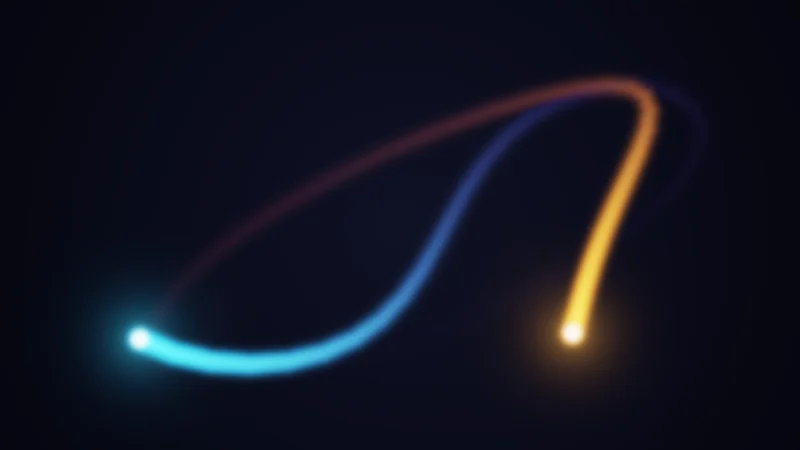
Light painting with a memory, where each frame keeps most of the last one. Raise Decay δ and the trails get shorter. I owe you a small confession. A browser has no CRT, so these demos fake the memory. Each frame they redraw where things were a moment ago and fade them with the same rule a CRT uses.
A texture that reads itself
Each frame the screen is wiped and every material’s shader runs again, once per pixel. A shader can read textures and material values, but not what it drew a frame ago, because that picture has already been painted over. On its own, a shader has no memory at all.
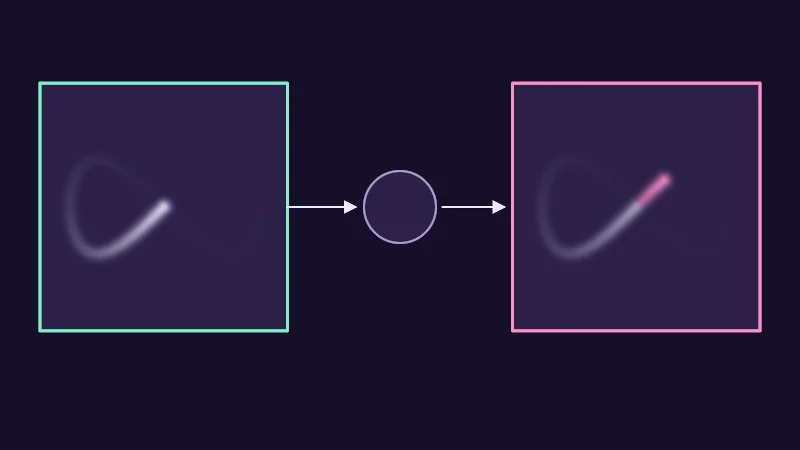
A CRT is a texture with its own material, the update material. Each frame Unity runs that material’s shader once for every texel (a texel is one pixel of a texture). Here comes the tricky bit. A GPU cannot read a texture while it writes it, and that is why Unity keeps two copies with Double Buffered on. The update reads last frame from one, as _SelfTexture2D, and writes this frame into the other. Next frame they swap, and this back and forth is called ping-pong.
Turn on JavaScript to run this demo.
Rendered in Unity 2022.3.22f1 from the Copy for Unity shader, with the settings this demo starts with.
// Uses the helper code shown with an earlier figure on this page.

// ----

// Ping-pong in slow motion: two textures take turns. One is read (last frame), the other is written (this frame).
#include "sdf2d"
#include "diagram"

static const float SWAP = 1.5;     // seconds of page time per frame
static const float STEP = 0.12;    // simulated seconds per frame, so each frame visibly differs
static const float HALF = 0.55;
static const float2 CA = float2(-1.05, 0.08);
static const float2 CB = float2(1.05, 0.08);
static const float2 NODE = float2(0.0, 0.08);

float content(float2 p, float2 c, float frame, out float age)
{
    float2 q = (p - c) / HALF * 1.45;
    return peakTrail(q, frame * STEP, 0.05, 10.0, 0.16, 32, age);
}

// The written texture shows the piece of trail added this frame in its own color.
float3 drawBox(float3 col, float2 p, float2 c, float frame, float3 role, bool written)
{
    float d = sdBox(p - c, float2(HALF, HALF));
    float age;
    float v = content(p, c, frame, age);
    float fresh = written ? 1.0 - smoothstep(0.8, 1.0, age / (STEP * FPS)) : 0.0;
    float3 ink = tint(themeInk(), series2(), fresh);
    float3 inside = tint(themeGrid(), ink, 0.85 * v);
    col = lerp(col, inside, saturate(0.5 - d / pixelSize()));
    return strokeShape(col, d, 3.0, role);
}

float4 shade(float2 uv)
{
    float2 p = centered(uv);
    float n = floor(_Time.y / SWAP);
    bool aWrites = n - 2.0 * floor(n / 2.0) < 0.5;

    // The written texture holds frame n, the read one still holds frame n - 1.
    float3 col = themeSurface();
    col = drawBox(col, p, CA, aWrites ? n : n - 1.0, aWrites ? series2() : series1(), aWrites);
    col = drawBox(col, p, CB, aWrites ? n - 1.0 : n, aWrites ? series1() : series2(), !aWrites);

    col = lerp(col, themeGrid(), saturate(0.5 - (length(p - NODE) - 0.16) / pixelSize()));
    col = drawCircle(col, p, NODE, 0.16, 2.0, themeMuted());
    float s = aWrites ? -1.0 : 1.0; // -1: B is read, A is written
    float edge = CB.x - HALF;
    col = drawArrow(col, p, NODE + float2(-s * edge, 0.0), NODE + float2(-s * 0.19, 0.0), 2.0, themeInk());
    col = drawArrow(col, p, NODE + float2(s * 0.19, 0.0), NODE + float2(s * (edge - 0.03), 0.0), 2.0, themeInk());
    return float4(col, 1.0);
}
// Uses the helper code shown with an earlier figure on this page.
// ----
// Ping-pong in slow motion: two textures take turns. One is read (last frame), the other is written (this frame).
#include "sdf2d"
#include "diagram"
const float SWAP = 1.5; // seconds of page time per frame
const float STEP = 0.12; // simulated seconds per frame, so each frame visibly differs
const float HALF = 0.55;
const vec2 CA = vec2(-1.05, 0.08);
const vec2 CB = vec2(1.05, 0.08);
const vec2 NODE = vec2(0.0, 0.08);
float content(vec2 p, vec2 c, float frame, out float age)
{
vec2 q = (p - c) / HALF * 1.45;
return peakTrail(q, frame * STEP, 0.05, 10.0, 0.16, 32, age);
}
// The written texture shows the piece of trail added this frame in its own color.
vec3 drawBox(vec3 col, vec2 p, vec2 c, float frame, vec3 role, bool written)
{
float d = sdBox(p - c, vec2(HALF, HALF));
float age;
float v = content(p, c, frame, age);
float fresh = written ? 1.0 - smoothstep(0.8, 1.0, age / (STEP * FPS)) : 0.0;
vec3 ink = tint(themeInk(), series2(), fresh);
vec3 inside = tint(themeGrid(), ink, 0.85 * v);
col = mix(col, inside, saturate(0.5 - d / pixelSize()));
return strokeShape(col, d, 3.0, role);
}
vec4 shade(vec2 uv)
{
vec2 p = centered(uv);
float n = floor(_Time.y / SWAP);
bool aWrites = n - 2.0 * floor(n / 2.0) < 0.5;
// The written texture holds frame n, the read one still holds frame n - 1.
vec3 col = themeSurface();
col = drawBox(col, p, CA, aWrites ? n : n - 1.0, aWrites ? series2() : series1(), aWrites);
col = drawBox(col, p, CB, aWrites ? n - 1.0 : n, aWrites ? series1() : series2(), !aWrites);
col = mix(col, themeGrid(), saturate(0.5 - (length(p - NODE) - 0.16) / pixelSize()));
col = drawCircle(col, p, NODE, 0.16, 2.0, themeMuted());
float s = aWrites ? -1.0 : 1.0; // -1: B is read, A is written
float edge = CB.x - HALF;
col = drawArrow(col, p, NODE + vec2(-s * edge, 0.0), NODE + vec2(-s * 0.19, 0.0), 2.0, themeInk());
col = drawArrow(col, p, NODE + vec2(s * 0.19, 0.0), NODE + vec2(s * (edge - 0.03), 0.0), 2.0, themeInk());
return vec4(col, 1.0);
}Names in this code (48)
_Time- Time since the level loaded, from Unity. _Time.y is seconds.
age- A parameter of content(), line 12: out float age.
aWrites- Declared on line 35: bool aWrites = n - 2.0 * floor(n / 2.0) < 0.5;
c- A parameter of content(), line 12: float2 c.
CA- Declared on line 8: static const float2 CA = float2(-1.05, 0.08);
CB- Declared on line 9: static const float2 CB = float2(1.05, 0.08);
centered- float2 centered(float2 uv). Square coordinates with the origin in the middle: the short side of the picture spans -1..1. (common library)
col- A parameter of drawBox(), line 19: float3 col.
content- float content(float2 p, float2 c, float frame, out float age)
d- Declared on line 21: float d = sdBox(p - c, float2(HALF, HALF));
drawArrow- float3 drawArrow(float3 col, float2 p, float2 a, float2 b, float widthPx, float3 ink) (diagram library)
drawBox- float3 drawBox(float3 col, float2 p, float2 c, float frame, float3 role, bool written). The written texture shows the piece of trail added this frame in its own color.
drawCircle- float3 drawCircle(float3 col, float2 p, float2 c, float r, float widthPx, float3 ink) (diagram library)
edge- Declared on line 45: float edge = CB.x - HALF;
frame- A parameter of content(), line 12: float frame.
fresh- Declared on line 24: float fresh = written ? 1.0 - smoothstep(0.8, 1.0, age / (STEP * FPS)) : 0.0;
HALF- Declared on line 7: static const float HALF = 0.55;
include- Pulls another file into this one, for example UnityCG.cginc.
ink- Declared on line 25: float3 ink = tint(themeInk(), series2(), fresh);
inside- Declared on line 26: float3 inside = tint(themeGrid(), ink, 0.85 * v);
lerp- HLSL's blend from a (t = 0) to b (t = 1). GLSL calls it mix.
n- Declared on line 34: float n = floor(_Time.y / SWAP);
NODE- Declared on line 10: static const float2 NODE = float2(0.0, 0.08);
p- A parameter of content(), line 12: float2 p.
peakTrail- float peakTrail(float2 p, float t, float decay, float seed, float r, int steps, out float bestAge). The peak hold buffer S = max((1 - decay) * S_prev, I) for a brush of radius r, on a FPS frame clock. Frame k ago weighs (1 - decay)^k. The brush path is cut into `steps` pieces (at most 64), and inside each piece the age grows with the position, so the trail is as smooth as one updated every frame. bestAge returns how many frames ago the winning value was painted. (this article's helper code)
pixelSize- float pixelSize() (common library)
q- Declared on line 14: float2 q = (p - c) / HALF * 1.45;
role- A parameter of drawBox(), line 19: float3 role.
s- Declared on line 44: float s = aWrites ? -1.0 : 1.0; // -1: B is read, A is written
saturate- An HLSL function that clamps a value between 0 and 1.
sdBox- float sdBox(float2 p, float2 halfSize) (sdf2d library)
series1- float3 series1() (common library)
series2- float3 series2() (common library)
shade- float4 shade(float2 uv)
STEP- Declared on line 6: static const float STEP = 0.12; // simulated seconds per frame, so each frame visibly differs
strokeShape- float3 strokeShape(float3 col, float d, float widthPx, float3 ink) (diagram library)
SWAP- Declared on line 5: static const float SWAP = 1.5; // seconds of page time per frame
themeGrid- float3 themeGrid() (common library)
themeInk- float3 themeInk() (common library)
themeMuted- float3 themeMuted() (common library)
themeSurface- float3 themeSurface(). The dusk stage colors, in linear light. Series colors are used in this order: mint, pink, butter. (common library)
tint- float3 tint(float3 a, float3 b, float t). Blends two colors in steps that look even to the eye (in sRGB), for value ramps such as distance bands. Edges and coverage still blend with lerp, in linear light, as light really adds up. (common library)
uv- A parameter of shade(), line 31: float2 uv.
v- Declared on line 23: float v = content(p, c, frame, age);
written- A parameter of drawBox(), line 19: bool written.
floor- floor(x) rounds down to the largest whole number not above x. floor(2.7) = 2, floor(-0.5) = -1.
length- length(v) says how long the vector v is, sqrt(x² + y²).
smoothstep- smoothstep(e0, e1, x) is 0 below e0, 1 above e1, and an S curve t² (3 - 2t) in between, where t = (x - e0) / (e1 - e0). GLSL leaves e0 >= e1 undefined.
Ping-pong in slow motion. The texture with the mint outline is read, the pink one is written with this frame’s new piece of trail, and then they trade places. Watch a few rounds until it clicks.
Trails fade a little and keep the brighter
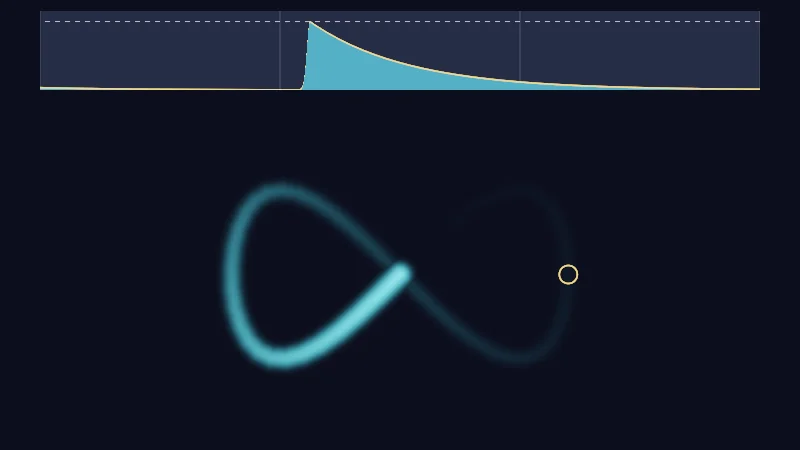
My buffer update shader turns that memory into trails with one small rule, called peak hold:
counts frames. is last frame’s stored value and the new one. is the input, here a soft brush. , the decay, is the share that fades each frame (0.04 by default in my shader), and , the gain, sets how bright the brush paints. So each frame the old value fades a little, and the brighter of the two wins.
When the brush passes, a pixel jumps to and then fades. After frames, of it is left. Why max and not plus? With plus, a resting brush piles up to 25 times its brightness at the default δ, and your soft glow turns into a glaring blob.
Turn on JavaScript to run this demo.
Rendered in Unity 2022.3.22f1 from the Copy for Unity shader, with the settings this demo starts with.
// Uses the helper code shown with an earlier figure on this page.

// ----

// Peak hold: S = max((1 - δ) S_prev, g I). Below, the buffer; above, the value of one pixel over the last 3 seconds.
// Stand-in: the buffer is worked out from the brush's past positions (see lib.hlsl), not stored.

uniform float _Decay; // @range 0.01 1 0.01 = 0.04 | Decay δ | How much of last frame's value fades away each frame. 1 forgets everything.
uniform float _Gain;  // @range 0 8 0.1 = 1 | Gain g | How strongly the new input is written into the buffer.

static const float2 VIEW_C = float2(0.0, -0.22);
static const float VIEW_S = 0.68;
static const float R = 0.1;
static const float STRIP_TOP = 0.95;
static const float STRIP_BOTTOM = 0.6;
static const float STRIP_X = 1.6;
static const float HISTORY = 3.0;

float4 shade(float2 uv)
{
    float2 p = centered(uv);
    float px = pixelSize();
    float2 probe = pointerCentered();
    probe.y = min(probe.y, 0.45);
    float2 qProbe = (probe - VIEW_C) / VIEW_S;
    float3 col = float3(0.010, 0.011, 0.022);

    if (p.y < STRIP_BOTTOM - 0.08)
    {
        float age;
        float v = _Gain * peakTrail((p - VIEW_C) / VIEW_S, _Time.y, _Decay, 10.0, R, 48, age);
        col += float3(0.20, 0.85, 1.0) * v * 0.9;
        float dp = length(p - probe) / px;
        col = lerp(col, float3(1.0, 0.65, 0.2), saturate(1.25 - abs(dp - 9.0)));
    }
    else if (p.y > STRIP_BOTTOM && p.y < STRIP_TOP && abs(p.x) < STRIP_X)
    {
        // Time runs right to left: the right edge is now, the left edge is HISTORY seconds ago.
        float ago = (STRIP_X - p.x) / (2.0 * STRIP_X) * HISTORY;
        float age;
        float v = _Gain * peakTrail(qProbe, _Time.y - ago, _Decay, 10.0, R, 48, age);
        float h = STRIP_TOP - STRIP_BOTTOM;
        float top = max(_Gain, 1.0) * 1.15;
        float y = STRIP_BOTTOM + h * min(v / top, 1.0);
        float yg = STRIP_BOTTOM + h * _Gain / top;

        col = float3(0.03, 0.035, 0.06);
        float sec = abs(frac(ago + 0.5) - 0.5) * 2.0 * STRIP_X / HISTORY / px;
        col = lerp(col, float3(0.07, 0.08, 0.12), saturate(1.0 - sec));
        float dash = step(0.5, frac(p.x / px / 10.0));
        col = lerp(col, float3(0.35, 0.36, 0.42), dash * saturate(1.0 - abs(p.y - yg) / px));
        col = lerp(col, float3(0.08, 0.30, 0.42), saturate((y - p.y) / px + 0.5));
        col = lerp(col, float3(1.0, 0.65, 0.2), saturate(1.25 - abs(p.y - y) / px));
    }
    return float4(tonemapACES(col), 1.0);
}
// Uses the helper code shown with an earlier figure on this page.
// ----
// Peak hold: S = max((1 - δ) S_prev, g I). Below, the buffer; above, the value of one pixel over the last 3 seconds.
// Stand-in: the buffer is worked out from the brush's past positions (see lib.hlsl), not stored.
uniform float _Decay; // @range 0.01 1 0.01 = 0.04 | Decay δ | How much of last frame's value fades away each frame. 1 forgets everything.
uniform float _Gain; // @range 0 8 0.1 = 1 | Gain g | How strongly the new input is written into the buffer.
const vec2 VIEW_C = vec2(0.0, -0.22);
const float VIEW_S = 0.68;
const float R = 0.1;
const float STRIP_TOP = 0.95;
const float STRIP_BOTTOM = 0.6;
const float STRIP_X = 1.6;
const float HISTORY = 3.0;
vec4 shade(vec2 uv)
{
vec2 p = centered(uv);
float px = pixelSize();
vec2 probe = pointerCentered();
probe.y = min(probe.y, 0.45);
vec2 qProbe = (probe - VIEW_C) / VIEW_S;
vec3 col = vec3(0.010, 0.011, 0.022);
if (p.y < STRIP_BOTTOM - 0.08)
{
float age;
float v = _Gain * peakTrail((p - VIEW_C) / VIEW_S, _Time.y, _Decay, 10.0, R, 48, age);
col += vec3(0.20, 0.85, 1.0) * v * 0.9;
float dp = length(p - probe) / px;
col = mix(col, vec3(1.0, 0.65, 0.2), saturate(1.25 - abs(dp - 9.0)));
}
else if (p.y > STRIP_BOTTOM && p.y < STRIP_TOP && abs(p.x) < STRIP_X)
{
// Time runs right to left: the right edge is now, the left edge is HISTORY seconds ago.
float ago = (STRIP_X - p.x) / (2.0 * STRIP_X) * HISTORY;
float age;
float v = _Gain * peakTrail(qProbe, _Time.y - ago, _Decay, 10.0, R, 48, age);
float h = STRIP_TOP - STRIP_BOTTOM;
float top = max(_Gain, 1.0) * 1.15;
float y = STRIP_BOTTOM + h * min(v / top, 1.0);
float yg = STRIP_BOTTOM + h * _Gain / top;
col = vec3(0.03, 0.035, 0.06);
float sec = abs(fract(ago + 0.5) - 0.5) * 2.0 * STRIP_X / HISTORY / px;
col = mix(col, vec3(0.07, 0.08, 0.12), saturate(1.0 - sec));
float dash = step(0.5, fract(p.x / px / 10.0));
col = mix(col, vec3(0.35, 0.36, 0.42), dash * saturate(1.0 - abs(p.y - yg) / px));
col = mix(col, vec3(0.08, 0.30, 0.42), saturate((y - p.y) / px + 0.5));
col = mix(col, vec3(1.0, 0.65, 0.2), saturate(1.25 - abs(p.y - y) / px));
}
return vec4(tonemapACES(col), 1.0);
}Names in this code (40)
_Decay- Slider "Decay δ". How much of last frame's value fades away each frame. 1 forgets everything. From 0.01 to 1, starts at 0.04.
_Gain- Slider "Gain g". How strongly the new input is written into the buffer. From 0 to 8, starts at 1.
_Time- Time since the level loaded, from Unity. _Time.y is seconds.
age- Declared on line 26: float age;
ago- Declared on line 35: float ago = (STRIP_X - p.x) / (2.0 * STRIP_X) * HISTORY;
centered- float2 centered(float2 uv). Square coordinates with the origin in the middle: the short side of the picture spans -1..1. (common library)
col- Declared on line 22: float3 col = float3(0.010, 0.011, 0.022);
dash- Declared on line 46: float dash = step(0.5, frac(p.x / px / 10.0));
dp- Declared on line 29: float dp = length(p - probe) / px;
frac- The part after the decimal point, in HLSL. GLSL calls it fract.
h- Declared on line 38: float h = STRIP_TOP - STRIP_BOTTOM;
HISTORY- Declared on line 13: static const float HISTORY = 3.0;
lerp- HLSL's blend from a (t = 0) to b (t = 1). GLSL calls it mix.
p- Declared on line 17: float2 p = centered(uv);
peakTrail- float peakTrail(float2 p, float t, float decay, float seed, float r, int steps, out float bestAge). The peak hold buffer S = max((1 - decay) * S_prev, I) for a brush of radius r, on a FPS frame clock. Frame k ago weighs (1 - decay)^k. The brush path is cut into `steps` pieces (at most 64), and inside each piece the age grows with the position, so the trail is as smooth as one updated every frame. bestAge returns how many frames ago the winning value was painted. (this article's helper code)
pixelSize- float pixelSize() (common library)
pointerCentered- float2 pointerCentered(). The pointer (or the _Pointer material setting in Unity) in the same coordinates as centered(). (common library)
probe- Declared on line 19: float2 probe = pointerCentered();
px- Declared on line 18: float px = pixelSize();
qProbe- Declared on line 21: float2 qProbe = (probe - VIEW_C) / VIEW_S;
R- Declared on line 9: static const float R = 0.1;
saturate- An HLSL function that clamps a value between 0 and 1.
sec- Declared on line 44: float sec = abs(frac(ago + 0.5) - 0.5) * 2.0 * STRIP_X / HISTORY / px;
shade- float4 shade(float2 uv)
STRIP_BOTTOM- Declared on line 11: static const float STRIP_BOTTOM = 0.6;
STRIP_TOP- Declared on line 10: static const float STRIP_TOP = 0.95;
STRIP_X- Declared on line 12: static const float STRIP_X = 1.6;
tonemapACES- float3 tonemapACES(float3 x). Rolls HDR values above 1 off softly instead of clipping them. (common library)
top- Declared on line 39: float top = max(_Gain, 1.0) * 1.15;
uv- A parameter of shade(), line 15: float2 uv.
v- Declared on line 27: float v = _Gain * peakTrail((p - VIEW_C) / VIEW_S, _Time.y, _Decay, 10.0, R, 48, age);
VIEW_C- Declared on line 7: static const float2 VIEW_C = float2(0.0, -0.22);
VIEW_S- Declared on line 8: static const float VIEW_S = 0.68;
y- Declared on line 40: float y = STRIP_BOTTOM + h * min(v / top, 1.0);
yg- Declared on line 41: float yg = STRIP_BOTTOM + h * _Gain / top;
abs- abs(x) is x without its minus sign. abs(-0.3) = 0.3.
length- length(v) says how long the vector v is, sqrt(x² + y²).
max- max(a, b) picks the larger of the two.
min- min(a, b) picks the smaller of the two.
step- A hard switch. step(edge, x) is 0 when x < edge, otherwise 1.
The graph follows the pixel under the ring. It jumps each time the brush passes and fades in between. Drag the ring around, then set Decay δ to 1 and watch the buffer forget everything at once.
float4 prev = tex2D(_SelfTexture2D, uv);     // last frame's stored state
float4 inp  = tex2D(_InputTex, uv) * _Gain;  // new data to fold in
// ...
float4 buf = max(prev * (1.0 - _Decay), inp);
return buf;
The demos here are stand-ins, but the trail is real in Unity. These are the files I use for it, with the steps to set them up. A texture that holds a fading trail needs more than 8 bits, because with 4% fading per frame an 8 bit value stops dropping at about 5% brightness. So I use RGBA Half for it.
// https://docme.dev/articles/custom-render-textures/
Shader "DocMe/CRT/TrailUpdate"
{
    Properties
    {
        _Decay ("Decay", Range(0.01, 1)) = 0.04
        _Gain ("Gain", Range(0, 8)) = 1
    }
    SubShader
    {
        Lighting Off
        Blend One Zero

        Pass
        {
            Name "Update"
            CGPROGRAM
            #include "UnityCustomRenderTexture.cginc"
            #pragma vertex CustomRenderTextureVertexShader
            #pragma fragment frag

            float _Decay;
            float _Gain;

            // Replace with your own input: where the brush is, from 0 to 1 across the texture.
            float2 BrushPosition(float t, float seed)
            {
                return float2(0.5 + 0.38 * sin(0.9 * t + seed * 2.1) + 0.08 * sin(2.3 * t + seed * 4.0),
                              0.5 + 0.34 * sin(1.37 * t + seed * 1.3 + 0.6));
            }

            float3 BrushColor(float t, float seed)
            {
                float k = 0.5 + 0.5 * sin(0.7 * t + seed * 2.5);
                return seed < 0.5 ? lerp(float3(1.0, 0.18, 0.62), float3(1.0, 0.55, 0.12), k)
                                  : lerp(float3(0.10, 0.75, 1.0), float3(0.45, 0.25, 1.0), k);
            }

            float4 frag(v2f_customrendertexture i) : SV_Target
            {
                float2 uv = i.localTexcoord.xy;
                float t = _Time.y;
                float3 paint = float3(0.0, 0.0, 0.0);
                for (int b = 0; b < 2; b++)
                {
                    float2 d = (uv - BrushPosition(t, b)) / 0.04;
                    paint = max(paint, BrushColor(t, b) * exp(-4.0 * dot(d, d)));
                }
                float4 prev = tex2D(_SelfTexture2D, uv);
                return max(prev * (1.0 - _Decay), float4(paint * _Gain, 0.0));
            }
            ENDCG
        }
    }
}// https://docme.dev/articles/custom-render-textures/
Shader "DocMe/CRT/TrailDisplay"
{
Properties
{
_Trail ("Trail", 2D) = "black" {}
}
SubShader
{
Tags { "RenderType" = "Opaque" }
Pass
{
CGPROGRAM
#pragma vertex vert
#pragma fragment frag
#include "UnityCG.cginc"
sampler2D _Trail;
struct appdata
{
float4 vertex : POSITION;
float2 uv : TEXCOORD0;
UNITY_VERTEX_INPUT_INSTANCE_ID
};
struct v2f
{
float4 pos : SV_POSITION;
float2 uv : TEXCOORD0;
UNITY_VERTEX_OUTPUT_STEREO
};
v2f vert(appdata v)
{
v2f o;
UNITY_SETUP_INSTANCE_ID(v);
UNITY_INITIALIZE_OUTPUT(v2f, o);
UNITY_INITIALIZE_VERTEX_OUTPUT_STEREO(o);
o.pos = UnityObjectToClipPos(v.vertex);
o.uv = v.uv;
return o;
}
float4 frag(v2f i) : SV_Target
{
float3 t = tex2D(_Trail, i.uv).rgb;
return float4(t * t * 1.4 + t * 0.35, 1.0);
}
ENDCG
}
}
}- Put both shader files anywhere in your project.
- Right-click each one and choose Create > Material. Call them Trail Update and Trail Display.
- Choose Create > Rendering > Custom Render Texture and call it Trail CRT.
- Select Trail CRT. Set Width and Height to 512 and Color Format to RGBA Half.
- Set Material to Trail Update, Shader Pass to Update, and turn Double Buffered on.
- Set Initialization Mode to OnLoad, Update Mode to Realtime with Period 0, and leave Generate Mip Maps off.
- Select Trail Display and drag Trail CRT into its Trail slot.
- Put Trail Display on a quad or any mesh of your avatar. It is the material that holds the CRT in the upload.
Afterimages from a running average
For a whole picture, let’s blend instead of taking the max:
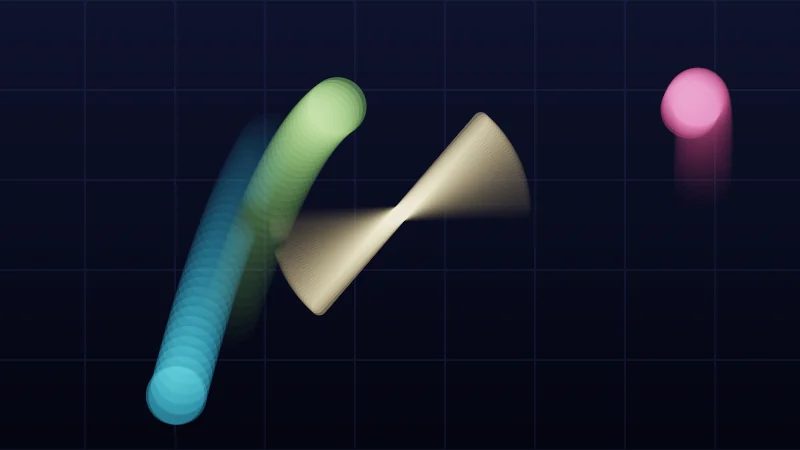
is this frame’s picture. slides from to as goes from 0 to 1, so , the smear, is the share of the stored picture you keep. A frame that is frames old weighs . The older, the fainter, and that’s why moving things drag a fading ghost. At 1 the picture freezes, ghost and all.
Turn on JavaScript to run this demo.
Rendered in Unity 2022.3.22f1 from the Copy for Unity shader, with the settings this demo starts with.
// Smear: S = lerp(F, S_prev, σ), a running average of whole frames.
// Stand-in: the last 32 frames are drawn again and added with their weights (1 - σ) σ^k.
#include "sdf2d"

uniform float _Smear; // @range 0 0.9 0.01 = 0.9 | Smear σ | How much of the stored picture each frame keeps. 0 shows the live picture.
uniform float _Fps;   // @select = 60 | Frame rate | 30 fps=30, 60 fps=60, 90 fps=90, 144 fps=144 | How often the buffer updates per second.

// Edge coverage with a fixed one pixel ramp, so the frame loop needs no screen derivatives.
float fillPx(float d) { return saturate(0.5 - d / pixelSize()); }

float3 ballColor(int i)
{
    if (i == 0) return float3(1.0, 0.22, 0.45);
    if (i == 1) return float3(0.15, 0.75, 1.0);
    return float3(0.55, 1.0, 0.35);
}

float3 frame(float2 p, float t)
{
    float3 col = lerp(float3(0.003, 0.004, 0.010), float3(0.010, 0.012, 0.030), saturate(0.5 + 0.5 * p.y));
    float2 g = abs(frac(p * 2.5) - 0.5) / (2.5 * pixelSize());
    col += float3(0.010, 0.012, 0.025) * saturate(1.0 - min(g.x, g.y));

    // A spinning bar.
    float2 dir = float2(cos(1.6 * t), sin(1.6 * t));
    float bar = sdSegment(p - float2(0.0, 0.05), -0.55 * dir, 0.55 * dir) - 0.035;
    col = lerp(col, float3(1.0, 0.85, 0.5), fillPx(bar));

    // Three bouncing balls.
    for (int i = 0; i < 3; i++)
    {
        float fi = float(i);
        float2 c = float2(1.35 * sin(0.75 * t + fi * 2.1), -0.78 + 1.35 * abs(sin(2.0 * t + fi * 1.3)));
        float d = sdCircle(p - c, 0.13);
        col = lerp(col, ballColor(i) * (1.1 - 0.25 * length(p - c - float2(-0.04, 0.05)) / 0.13), fillPx(d));
    }
    return col;
}

float4 shade(float2 uv)
{
    float2 p = centered(uv);
    float3 sum = float3(0.0, 0.0, 0.0);
    float w = 1.0 - _Smear, total = 0.0;
    for (int k = 0; k < 32; k++)
    {
        sum += w * frame(p, _Time.y - float(k) / _Fps);
        total += w;
        w *= _Smear;
        if (w < 1e-4) break;
    }
    // Frames older than 32 are left out, so the weights are scaled back up to 1.
    float3 col = sum / max(total, 1e-4);
    return float4(tonemapACES(col * 1.2), 1.0);
}
// Smear: S = lerp(F, S_prev, σ), a running average of whole frames.
// Stand-in: the last 32 frames are drawn again and added with their weights (1 - σ) σ^k.
#include "sdf2d"
uniform float _Smear; // @range 0 0.9 0.01 = 0.9 | Smear σ | How much of the stored picture each frame keeps. 0 shows the live picture.
uniform float _Fps; // @select = 60 | Frame rate | 30 fps=30, 60 fps=60, 90 fps=90, 144 fps=144 | How often the buffer updates per second.
// Edge coverage with a fixed one pixel ramp, so the frame loop needs no screen derivatives.
float fillPx(float d) { return saturate(0.5 - d / pixelSize()); }
vec3 ballColor(int i)
{
if (i == 0) return vec3(1.0, 0.22, 0.45);
if (i == 1) return vec3(0.15, 0.75, 1.0);
return vec3(0.55, 1.0, 0.35);
}
vec3 frame(vec2 p, float t)
{
vec3 col = mix(vec3(0.003, 0.004, 0.010), vec3(0.010, 0.012, 0.030), saturate(0.5 + 0.5 * p.y));
vec2 g = abs(fract(p * 2.5) - 0.5) / (2.5 * pixelSize());
col += vec3(0.010, 0.012, 0.025) * saturate(1.0 - min(g.x, g.y));
// A spinning bar.
vec2 dir = vec2(cos(1.6 * t), sin(1.6 * t));
float bar = sdSegment(p - vec2(0.0, 0.05), -0.55 * dir, 0.55 * dir) - 0.035;
col = mix(col, vec3(1.0, 0.85, 0.5), fillPx(bar));
// Three bouncing balls.
for (int i = 0; i < 3; i++)
{
float fi = float(i);
vec2 c = vec2(1.35 * sin(0.75 * t + fi * 2.1), -0.78 + 1.35 * abs(sin(2.0 * t + fi * 1.3)));
float d = sdCircle(p - c, 0.13);
col = mix(col, ballColor(i) * (1.1 - 0.25 * length(p - c - vec2(-0.04, 0.05)) / 0.13), fillPx(d));
}
return col;
}
vec4 shade(vec2 uv)
{
vec2 p = centered(uv);
vec3 sum = vec3(0.0, 0.0, 0.0);
float w = 1.0 - _Smear, total = 0.0;
for (int k = 0; k < 32; k++)
{
sum += w * frame(p, _Time.y - float(k) / _Fps);
total += w;
w *= _Smear;
if (w < 1e-4) break;
}
// Frames older than 32 are left out, so the weights are scaled back up to 1.
vec3 col = sum / max(total, 1e-4);
return vec4(tonemapACES(col * 1.2), 1.0);
}Names in this code (35)
_Fps- Choice "Frame rate". How often the buffer updates per second.
_Smear- Slider "Smear σ". How much of the stored picture each frame keeps. 0 shows the live picture. From 0 to 0.9, starts at 0.9.
_Time- Time since the level loaded, from Unity. _Time.y is seconds.
ballColor- float3 ballColor(int i)
bar- Declared on line 26: float bar = sdSegment(p - float2(0.0, 0.05), -0.55 * dir, 0.55 * dir) - 0.035;
c- Declared on line 33: float2 c = float2(1.35 * sin(0.75 * t + fi * 2.1), -0.78 + 1.35 * abs(sin(2.0 * t + fi * 1.3)));
centered- float2 centered(float2 uv). Square coordinates with the origin in the middle: the short side of the picture spans -1..1. (common library)
col- Declared on line 20: float3 col = lerp(float3(0.003, 0.004, 0.010), float3(0.010, 0.012, 0.030), saturate(0.5 + 0.5 * p.y));
d- A parameter of fillPx(), line 9: float d.
dir- Declared on line 25: float2 dir = float2(cos(1.6 * t), sin(1.6 * t));
fi- Declared on line 32: float fi = float(i);
fillPx- float fillPx(float d). Edge coverage with a fixed one pixel ramp, so the frame loop needs no screen derivatives.
frac- The part after the decimal point, in HLSL. GLSL calls it fract.
frame- float3 frame(float2 p, float t)
g- Declared on line 21: float2 g = abs(frac(p * 2.5) - 0.5) / (2.5 * pixelSize());
i- A parameter of ballColor(), line 11: int i.
include- Pulls another file into this one, for example UnityCG.cginc.
lerp- HLSL's blend from a (t = 0) to b (t = 1). GLSL calls it mix.
p- A parameter of frame(), line 18: float2 p.
pixelSize- float pixelSize() (common library)
saturate- An HLSL function that clamps a value between 0 and 1.
sdCircle- float sdCircle(float2 p, float r) (sdf2d library)
sdSegment- float sdSegment(float2 p, float2 a, float2 b) (sdf2d library)
shade- float4 shade(float2 uv)
sum- Declared on line 43: float3 sum = float3(0.0, 0.0, 0.0);
t- A parameter of frame(), line 18: float t.
tonemapACES- float3 tonemapACES(float3 x). Rolls HDR values above 1 off softly instead of clipping them. (common library)
uv- A parameter of shade(), line 40: float2 uv.
w- Declared on line 44: float w = 1.0 - _Smear, total = 0.0;
abs- abs(x) is x without its minus sign. abs(-0.3) = 0.3.
cos- cos(a) is the cosine of the angle a, in radians.
length- length(v) says how long the vector v is, sqrt(x² + y²).
max- max(a, b) picks the larger of the two.
min- min(a, b) picks the smaller of the two.
sin- sin(a) is the sine of the angle a, in radians.
Play with Smear σ. It stops at 0.9 here, since the demo redraws only 32 frames and cannot reach the freeze at 1. Set Frame rate to 30 fps and the copies spread apart. At 144 fps the ghost gets shorter, because the fade is counted in frames, not seconds.
Smoothing a value, and why the format matters
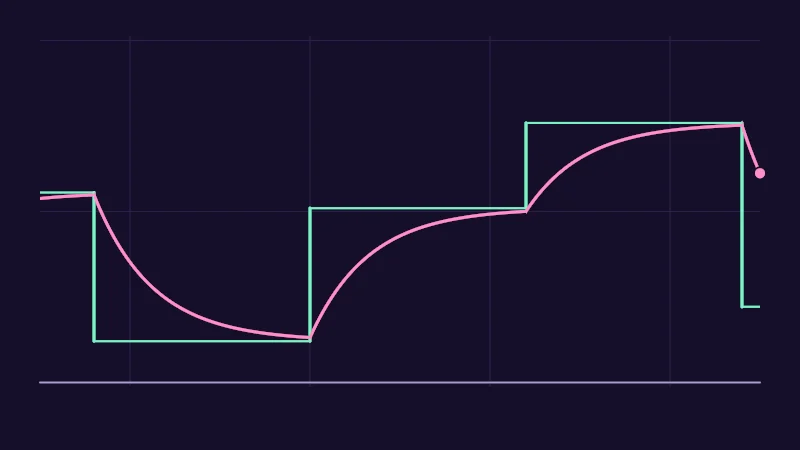
The same rule on a single texel also smooths a number, with an input in place of the picture . A brightness read from the screen (more on that in In practice) can then make a glow adapt slowly.
Now a tricky part, so take it slow. An 8 bit channel stores 256 steps, and a change smaller than half a step rounds away. Near the target each frame’s change is tiny, so it rounds away and the value stalls. It stops short of its target by up to , which is 4% at . For numbers, use RGBA Float (32 bit). Half keeps only about three digits, plenty for a smoothed colour but too few for times or counters.
If your CRT has to be 8 bit, it can split a number over two channels, with the remainder times 255 in the second (Unity’s EncodeFloatRG). That fine part does not survive a trip through the screen, though.
Turn on JavaScript to run this demo.
Rendered in Unity 2022.3.22f1 from the Copy for Unity shader, with the settings this demo starts with.
// A value smoothed by a one texel CRT: S = lerp(I, S_prev, σ), once per frame at 60 fps. The last 4 seconds, now on the right.
// Stand-in: the input holds a level for 1.2 s at a time, so the buffer is worked out segment by segment
// (inside one level, the gap to the input shrinks by σ each frame) instead of being stored.
#include "diagram"

uniform float _Smooth;  // @range 0 0.98 0.01 = 0.95 | Smoothing σ | How much of the stored value each frame keeps. 0 follows the input at once.
uniform float _Storage; // @select = 0 | Storage | Float=0, 8 bit=1 | Whether the CRT's texture format holds a float or 256 steps per channel.

static const float FPS = 60.0;
static const float SEG = 1.2;      // seconds per input level
static const float WINDOW = 4.0;   // seconds shown
static const float X0 = -1.6, X1 = 1.6, Y0 = -0.7, Y1 = 0.82;

float level(float j) { return 0.12 + 0.76 * hash11(j * 7.31 + 3.0); }
float toY(float v) { return lerp(Y0, Y1, v); }

// The stored value at time t. With eightBit, a step smaller than half of 1/255 rounds away,
// so the gap to the input stops shrinking once it is below 0.5 / (255 (1 - σ)).
float stored(float t, bool eightBit, out float slope)
{
    float keep = _Smooth;
    float stuck = eightBit ? 0.5 / (255.0 * max(1.0 - keep, 1e-3)) : 0.0;
    float jNow = floor(t / SEG);
    float s = level(jNow - 6.0);
    slope = 0.0;
    for (int i = 5; i >= 0; i--)
    {
        float j = jNow - float(i);
        float L = level(j);
        float n = (i == 0 ? t - j * SEG : SEG) * FPS;
        float g = s - L;
        float shrunk = abs(g) * pow(keep, n);
        float ga = abs(g) > stuck ? max(shrunk, stuck) : abs(g);
        if (i == 0) slope = (shrunk > stuck || !eightBit) ? sign(g) * shrunk * log(max(keep, 1e-4)) * FPS : 0.0;
        s = L + sign(g) * ga;
    }
    if (eightBit) s = floor(s * 255.0 + 0.5) / 255.0;
    return s;
}

float4 shade(float2 uv)
{
    float2 p = centered(uv);
    float px = pixelSize();
    float3 col = themeSurface();

    float t = _Time.y - WINDOW * (X1 - p.x) / (X1 - X0);
    float yScale = (Y1 - Y0);
    float tScale = WINDOW / (X1 - X0); // seconds per unit across

    if (p.x > X0 && p.x < X1 && p.y > Y0 - 0.02 && p.y < Y1 + 0.02)
    {
        // Value lines at 0, 0.5 and 1, and a line every second.
        for (int k = 0; k < 3; k++) col = lerp(col, themeGrid(), saturate(1.0 - abs(p.y - toY(0.5 * float(k))) / px));
        float sec = abs(frac(t + 0.5) - 0.5) / tScale / px;
        col = lerp(col, themeGrid(), saturate(1.0 - sec));
    }
    col = drawLine(col, p, float2(X0, Y0), float2(X1, Y0), 1.5, themeMuted());

    if (p.x > X0 && p.x < X1)
    {
        // The input: a level that jumps every SEG seconds.
        float j = floor(t / SEG);
        float3 inC = series1();
        col = lerp(col, inC, saturate(1.5 - abs(p.y - toY(level(j))) / px));
        float jb = floor(_Time.y / SEG);
        for (int i = 0; i < 5; i++)
        {
            float b = (jb - float(i)) * SEG;
            float xb = X1 - (_Time.y - b) / tScale;
            if (xb < X0) break;
            col = drawLine(col, p, float2(xb, toY(level(jb - float(i) - 1.0))), float2(xb, toY(level(jb - float(i)))), 3.0, inC);
        }

        bool eight = _Storage > 0.5;
        float slope;
        if (eight)
        {
            // The float result, dashed, for comparison.
            float sf = stored(t, false, slope);
            float k = slope * tScale * yScale;
            float d = abs(p.y - toY(sf)) / px / sqrt(1.0 + k * k);
            float dash = step(0.5, frac(p.x / px / 12.0));
            col = lerp(col, themeMuted(), dash * saturate(1.25 - d));
        }
        float s = stored(t, eight, slope);
        float k = slope * tScale * yScale;
        float d = abs(p.y - toY(s)) / px / sqrt(1.0 + k * k);
        col = lerp(col, series2(), saturate(2.0 - d));
    }

    float slopeNow;
    float sNow = stored(_Time.y, _Storage > 0.5, slopeNow);
    col = drawDot(col, p, float2(X1, toY(sNow)), 5.0, series2());
    return float4(col, 1.0);
}
// A value smoothed by a one texel CRT: S = lerp(I, S_prev, σ), once per frame at 60 fps. The last 4 seconds, now on the right.
// Stand-in: the input holds a level for 1.2 s at a time, so the buffer is worked out segment by segment
// (inside one level, the gap to the input shrinks by σ each frame) instead of being stored.
#include "diagram"
uniform float _Smooth; // @range 0 0.98 0.01 = 0.95 | Smoothing σ | How much of the stored value each frame keeps. 0 follows the input at once.
uniform float _Storage; // @select = 0 | Storage | Float=0, 8 bit=1 | Whether the CRT's texture format holds a float or 256 steps per channel.
const float FPS = 60.0;
const float SEG = 1.2; // seconds per input level
const float WINDOW = 4.0; // seconds shown
const float X0 = -1.6, X1 = 1.6, Y0 = -0.7, Y1 = 0.82;
float level(float j) { return 0.12 + 0.76 * hash11(j * 7.31 + 3.0); }
float toY(float v) { return mix(Y0, Y1, v); }
// The stored value at time t. With eightBit, a step smaller than half of 1/255 rounds away,
// so the gap to the input stops shrinking once it is below 0.5 / (255 (1 - σ)).
float stored(float t, bool eightBit, out float slope)
{
float keep = _Smooth;
float stuck = eightBit ? 0.5 / (255.0 * max(1.0 - keep, 1e-3)) : 0.0;
float jNow = floor(t / SEG);
float s = level(jNow - 6.0);
slope = 0.0;
for (int i = 5; i >= 0; i--)
{
float j = jNow - float(i);
float L = level(j);
float n = (i == 0 ? t - j * SEG : SEG) * FPS;
float g = s - L;
float shrunk = abs(g) * pow(keep, n);
float ga = abs(g) > stuck ? max(shrunk, stuck) : abs(g);
if (i == 0) slope = (shrunk > stuck || !eightBit) ? sign(g) * shrunk * log(max(keep, 1e-4)) * FPS : 0.0;
s = L + sign(g) * ga;
}
if (eightBit) s = floor(s * 255.0 + 0.5) / 255.0;
return s;
}
vec4 shade(vec2 uv)
{
vec2 p = centered(uv);
float px = pixelSize();
vec3 col = themeSurface();
float t = _Time.y - WINDOW * (X1 - p.x) / (X1 - X0);
float yScale = (Y1 - Y0);
float tScale = WINDOW / (X1 - X0); // seconds per unit across
if (p.x > X0 && p.x < X1 && p.y > Y0 - 0.02 && p.y < Y1 + 0.02)
{
// Value lines at 0, 0.5 and 1, and a line every second.
for (int k = 0; k < 3; k++) col = mix(col, themeGrid(), saturate(1.0 - abs(p.y - toY(0.5 * float(k))) / px));
float sec = abs(fract(t + 0.5) - 0.5) / tScale / px;
col = mix(col, themeGrid(), saturate(1.0 - sec));
}
col = drawLine(col, p, vec2(X0, Y0), vec2(X1, Y0), 1.5, themeMuted());
if (p.x > X0 && p.x < X1)
{
// The input: a level that jumps every SEG seconds.
float j = floor(t / SEG);
vec3 inC = series1();
col = mix(col, inC, saturate(1.5 - abs(p.y - toY(level(j))) / px));
float jb = floor(_Time.y / SEG);
for (int i = 0; i < 5; i++)
{
float b = (jb - float(i)) * SEG;
float xb = X1 - (_Time.y - b) / tScale;
if (xb < X0) break;
col = drawLine(col, p, vec2(xb, toY(level(jb - float(i) - 1.0))), vec2(xb, toY(level(jb - float(i)))), 3.0, inC);
}
bool eight = _Storage > 0.5;
float slope;
if (eight)
{
// The float result, dashed, for comparison.
float sf = stored(t, false, slope);
float k = slope * tScale * yScale;
float d = abs(p.y - toY(sf)) / px / sqrt(1.0 + k * k);
float dash = step(0.5, fract(p.x / px / 12.0));
col = mix(col, themeMuted(), dash * saturate(1.25 - d));
}
float s = stored(t, eight, slope);
float k = slope * tScale * yScale;
float d = abs(p.y - toY(s)) / px / sqrt(1.0 + k * k);
col = mix(col, series2(), saturate(2.0 - d));
}
float slopeNow;
float sNow = stored(_Time.y, _Storage > 0.5, slopeNow);
col = drawDot(col, p, vec2(X1, toY(sNow)), 5.0, series2());
return vec4(col, 1.0);
}Names in this code (65)
_Smooth- Slider "Smoothing σ". How much of the stored value each frame keeps. 0 follows the input at once. From 0 to 0.98, starts at 0.95.
_Storage- Choice "Storage". Whether the CRT's texture format holds a float or 256 steps per channel.
_Time- Time since the level loaded, from Unity. _Time.y is seconds.
b- Declared on line 69: float b = (jb - float(i)) * SEG;
centered- float2 centered(float2 uv). Square coordinates with the origin in the middle: the short side of the picture spans -1..1. (common library)
col- Declared on line 45: float3 col = themeSurface();
d- Declared on line 82: float d = abs(p.y - toY(sf)) / px / sqrt(1.0 + k * k);
dash- Declared on line 83: float dash = step(0.5, frac(p.x / px / 12.0));
drawDot- float3 drawDot(float3 col, float2 p, float2 c, float radiusPx, float3 ink). A dot with a ring in the surface color around it. (diagram library)
drawLine- float3 drawLine(float3 col, float2 p, float2 a, float2 b, float widthPx, float3 ink) (diagram library)
eight- Declared on line 75: bool eight = _Storage > 0.5;
eightBit- A parameter of stored(), line 19: bool eightBit.
FPS- Declared on line 9: static const float FPS = 60.0;
frac- The part after the decimal point, in HLSL. GLSL calls it fract.
g- Declared on line 31: float g = s - L;
ga- Declared on line 33: float ga = abs(g) > stuck ? max(shrunk, stuck) : abs(g);
hash11- float hash11(float p). Cheap hashes: one random number per input. Dave Hoskins, Hash without Sine (MIT License). (common library)
inC- Declared on line 64: float3 inC = series1();
include- Pulls another file into this one, for example UnityCG.cginc.
j- A parameter of level(), line 14: float j.
jb- Declared on line 66: float jb = floor(_Time.y / SEG);
jNow- Declared on line 23: float jNow = floor(t / SEG);
k- Declared on line 81: float k = slope * tScale * yScale;
keep- Declared on line 21: float keep = _Smooth;
L- Declared on line 29: float L = level(j);
lerp- HLSL's blend from a (t = 0) to b (t = 1). GLSL calls it mix.
level- float level(float j)
n- Declared on line 30: float n = (i == 0 ? t - j * SEG : SEG) * FPS;
p- Declared on line 43: float2 p = centered(uv);
pixelSize- float pixelSize() (common library)
px- Declared on line 44: float px = pixelSize();
s- Declared on line 24: float s = level(jNow - 6.0);
saturate- An HLSL function that clamps a value between 0 and 1.
sec- Declared on line 55: float sec = abs(frac(t + 0.5) - 0.5) / tScale / px;
SEG- Declared on line 10: static const float SEG = 1.2; // seconds per input level
series1- float3 series1() (common library)
series2- float3 series2() (common library)
sf- Declared on line 80: float sf = stored(t, false, slope);
shade- float4 shade(float2 uv)
shrunk- Declared on line 32: float shrunk = abs(g) * pow(keep, n);
slope- A parameter of stored(), line 19: out float slope.
slopeNow- Declared on line 92: float slopeNow;
sNow- Declared on line 93: float sNow = stored(_Time.y, _Storage > 0.5, slopeNow);
stored- float stored(float t, bool eightBit, out float slope). The stored value at time t. With eightBit, a step smaller than half of 1/255 rounds away, so the gap to the input stops shrinking once it is below 0.5 / (255 (1 - σ)).
stuck- Declared on line 22: float stuck = eightBit ? 0.5 / (255.0 * max(1.0 - keep, 1e-3)) : 0.0;
t- A parameter of stored(), line 19: float t.
themeGrid- float3 themeGrid() (common library)
themeMuted- float3 themeMuted() (common library)
themeSurface- float3 themeSurface(). The dusk stage colors, in linear light. Series colors are used in this order: mint, pink, butter. (common library)
toY- float toY(float v)
tScale- Declared on line 49: float tScale = WINDOW / (X1 - X0); // seconds per unit across
uv- A parameter of shade(), line 41: float2 uv.
v- A parameter of toY(), line 15: float v.
WINDOW- Declared on line 11: static const float WINDOW = 4.0; // seconds shown
X0- Declared on line 12: static const float X0 = -1.6, X1 = 1.6, Y0 = -0.7, Y1 = 0.82;
xb- Declared on line 70: float xb = X1 - (_Time.y - b) / tScale;
yScale- Declared on line 48: float yScale = (Y1 - Y0);
abs- abs(x) is x without its minus sign. abs(-0.3) = 0.3.
floor- floor(x) rounds down to the largest whole number not above x. floor(2.7) = 2, floor(-0.5) = -1.
log- The natural logarithm, the inverse of exp. log(x) is undefined for x <= 0.
max- max(a, b) picks the larger of the two.
pow- pow(x, y) is x to the power y, and undefined for x < 0.
sign- sign(x) gives -1 for negative x, 0 for zero and 1 for positive x.
sqrt- sqrt(x) is the square root of x, undefined for x < 0.
step- A hard switch. step(edge, x) is 0 when x < edge, otherwise 1.
Higher Smoothing σ follows more slowly. Now set Storage to 8 bit and push the slider near 0.98. The pink line stalls short of each level, while the dashed float result keeps going.
Storing numbers in pixels
A texel (one pixel of the CRT, remember) holds four numbers: red, green, blue and alpha. So a 4 × 1 RGBA Float CRT keeps sixteen. Let’s give each texel a job and read it at its centre. Here’s my example:
#include "UnityCustomRenderTexture.cginc"
#pragma vertex CustomRenderTextureVertexShader
#pragma fragment frag

float _Smooth; // a fixed setting on the update material

float4 frag(v2f_customrendertexture i) : SV_Target
{
    float2 uv = i.localTexcoord.xy;
    float v = tex2D(_SelfTexture2D, uv).x;     // last frame's number
    int slot = (int)(uv.x * 4.0);              // which texel this is
    float x = ReadInput();                     // see In practice
    if (slot == 0) v = lerp(x, v, _Smooth);    // a smoothed value
    else if (slot == 1 && x > 0.5) v += unity_DeltaTime.x; // a timer
    else if (slot == 2) v = _Time.y;           // a heartbeat
    return float4(v, 0, 0, 0);
}
Texel 0 smooths the input with the rule from the last section. Texel 1 adds the frame time, unity_DeltaTime.x, while the input is on, so it counts seconds. Adding is how a CRT accumulates. Texel 2 copies the clock, _Time.y, and I think of it as the buffer’s heartbeat. When it falls more than half a second behind the clock, the material that shows the effect treats the buffer as stopped and falls back to a look without memory. Plainer, but not frozen.
In practice
An avatar has no scripts, so the CRT asset must run all on its own. These settings make that work:
| Setting | Value | Why |
|---|---|---|
| Material | your update material | Its shader runs each frame. |
| Double Buffered | on | Gives _SelfTexture2D. |
| Update Mode | Realtime, period 0 | Every frame. OnDemand needs a script. |
| Initialization Mode | OnLoad | Realtime wipes it every frame. |
| Color Format | RGBA Float for numbers, RGBA 8 bit for pictures | See above. |
| Filter Mode | Point for numbers | Neighbouring texels never blend. |
| Mipmaps | off | They add a third more memory, rebuilt every update. |
- Keeping it running. A material on the avatar must use the CRT, usually the one that shows the result, so it comes along in the upload. The animator cannot reach the update material (it sits on no mesh). Each viewer runs their own copy and nothing is synced. Here’s a funny side effect. Two wearers of one avatar share one CRT, so their trails mix. PC only.
- The update bug. A bug report from 2019, still marked tracked, says avatar CRTs can freeze after an avatar switch or an instance join until VRChat restarts. The heartbeat texel from above catches that.
- Frame rate. Remember that the fade is counted in frames? At the default decay, half a trail is gone after 17 frames. That takes 0.28 s at 60 fps but only 0.12 s at 144 fps. For the same fade everywhere, raise to the power , with the frame time in seconds.
- Cost. The update runs once per texel every frame on every viewer’s GPU. For a little data CRT that’s next to nothing, while a screen sized one costs as much as a full screen effect. Memory is width × height × bytes per texel, twice for the two ping-pong copies:
| CRT | Format | Memory |
|---|---|---|
| 4 × 1, a few numbers | RGBA Float, 16 bytes | 128 bytes |
| 512 × 512, a trail map | RGBA 8 bit, 4 bytes | 2 MB |
| 2048 × 1024, a screen copy | RGBA 8 bit, 4 bytes | 16 MB |
So where does the input come from? Besides the globals every shader sees (time, VRChat’s globals, AudioLink in worlds that have it), the avatar can send its own data in two ways:
- Read the screen. A GrabPass copies the screen into a texture. Give it a name,
GrabPass { "_MyGrab" }, and it makes a global texture that any shader can read, the CRT update included. CRTs update before the cameras draw, so the copy is one frame old. It comes from whichever camera drew last (a mirror or the photo camera too), and only when the mesh with the GrabPass was drawn. - Signal pixels. The avatar’s own material, which the animator can drive, paints numbers as colours into a corner of the screen, and the CRT reads them back from the grab. Since other cameras draw too, I start the block with a fixed colour the CRT checks first, like a secret handshake. I store 16 levels per channel, which survive 8 bit and float screens, and draw over the block again so nobody sees it.
My screen smear prototype reads the copy made by a GrabPass named _DocMeCRTGrab. It’s the afterimage rule from earlier, now on the real screen:
sampler2D _DocMeCRTGrab;
// ...
    float4 fresh = tex2D(_DocMeCRTGrab, uv);   // this frame's screen (1-frame latency)
    float4 prev  = tex2D(_SelfTexture2D,  uv);  // previous buffer (CRT is Double Buffered)
    // ...
    return lerp(fresh, prev, _Smear);
Here are the complete files, a CRT and a material that shows it. The mesh needs the GrabPass, so the display shader carries it.
// https://docme.dev/articles/custom-render-textures/
Shader "DocMe/CRT/AfterimageUpdate"
{
    Properties
    {
        _Smear ("Smear", Range(0, 0.99)) = 0.9
    }
    SubShader
    {
        Lighting Off
        Blend One Zero

        Pass
        {
            Name "Update"
            CGPROGRAM
            #include "UnityCustomRenderTexture.cginc"
            #pragma vertex CustomRenderTextureVertexShader
            #pragma fragment frag

            sampler2D _DocMeCRTGrab;
            float _Smear;

            float4 frag(v2f_customrendertexture i) : SV_Target
            {
                float2 uv = i.localTexcoord.xy;
                float4 fresh = tex2D(_DocMeCRTGrab, uv);
                float4 prev = tex2D(_SelfTexture2D, uv);
                return lerp(fresh, prev, _Smear);
            }
            ENDCG
        }
    }
}// https://docme.dev/articles/custom-render-textures/
Shader "DocMe/CRT/AfterimageDisplay"
{
Properties
{
_Afterimage ("Afterimage", 2D) = "black" {}
}
SubShader
{
Tags { "Queue" = "Transparent" "RenderType" = "Transparent" }
ZWrite Off
GrabPass { "_DocMeCRTGrab" }
Pass
{
CGPROGRAM
#pragma vertex vert
#pragma fragment frag
#include "UnityCG.cginc"
sampler2D _Afterimage;
struct appdata
{
float4 vertex : POSITION;
UNITY_VERTEX_INPUT_INSTANCE_ID
};
struct v2f
{
float4 pos : SV_POSITION;
float4 grabPos : TEXCOORD0;
UNITY_VERTEX_OUTPUT_STEREO
};
v2f vert(appdata v)
{
v2f o;
UNITY_SETUP_INSTANCE_ID(v);
UNITY_INITIALIZE_OUTPUT(v2f, o);
UNITY_INITIALIZE_VERTEX_OUTPUT_STEREO(o);
o.pos = UnityObjectToClipPos(v.vertex);
o.grabPos = ComputeGrabScreenPos(o.pos);
return o;
}
float4 frag(v2f i) : SV_Target
{
return float4(tex2Dproj(_Afterimage, i.grabPos).rgb, 1.0);
}
ENDCG
}
}
}- Put both shader files anywhere in your project.
- Right-click each one and choose Create > Material. Call them Afterimage Update and Afterimage Display.
- Choose Create > Rendering > Custom Render Texture and call it Afterimage CRT.
- Select Afterimage CRT. Set Width to 1024, Height to 512 and Color Format to RGBA 8 bit.
- Set Material to Afterimage Update, Shader Pass to Update, and turn Double Buffered on.
- Set Initialization Mode to OnLoad, Update Mode to Realtime with Period 0, and leave Generate Mip Maps off.
- Select Afterimage Display and drag Afterimage CRT into its Afterimage slot.
- Put Afterimage Display on a quad in front of the camera or on a large mesh of your avatar. It shows what is behind it with the ghost. Use it on one mesh only, because every mesh with the GrabPass copies the screen.
Credits
- CustomRenderTexture,
_SelfTexture2Dand double buffering are Unity features. - Keeping values in a CRT and stamping them with the time follows the video decoder in lox9973’s ShaderMotion.
- A CRT reads last frame through
_SelfTexture2Dand writes this frame. Make it Double Buffered, Realtime and initialized once, and your shader has a memory. - Peak hold makes fading trails, a running average makes afterimages and smooth values, and adding makes counters.
- Store numbers in RGBA Float, send input through the screen, and keep a heartbeat so you notice when the buffer stops.